TABLE OF CONTENTS
How a SQL Server behaves for years is largely decided on the day it’s installed. A wrongly formatted disk, a service running under a personal account, a memory setting left at default or the wrong collation are problems that take downtime and effort to fix later. So installation should be treated not as a wizard you click through, but as a process with documented steps.
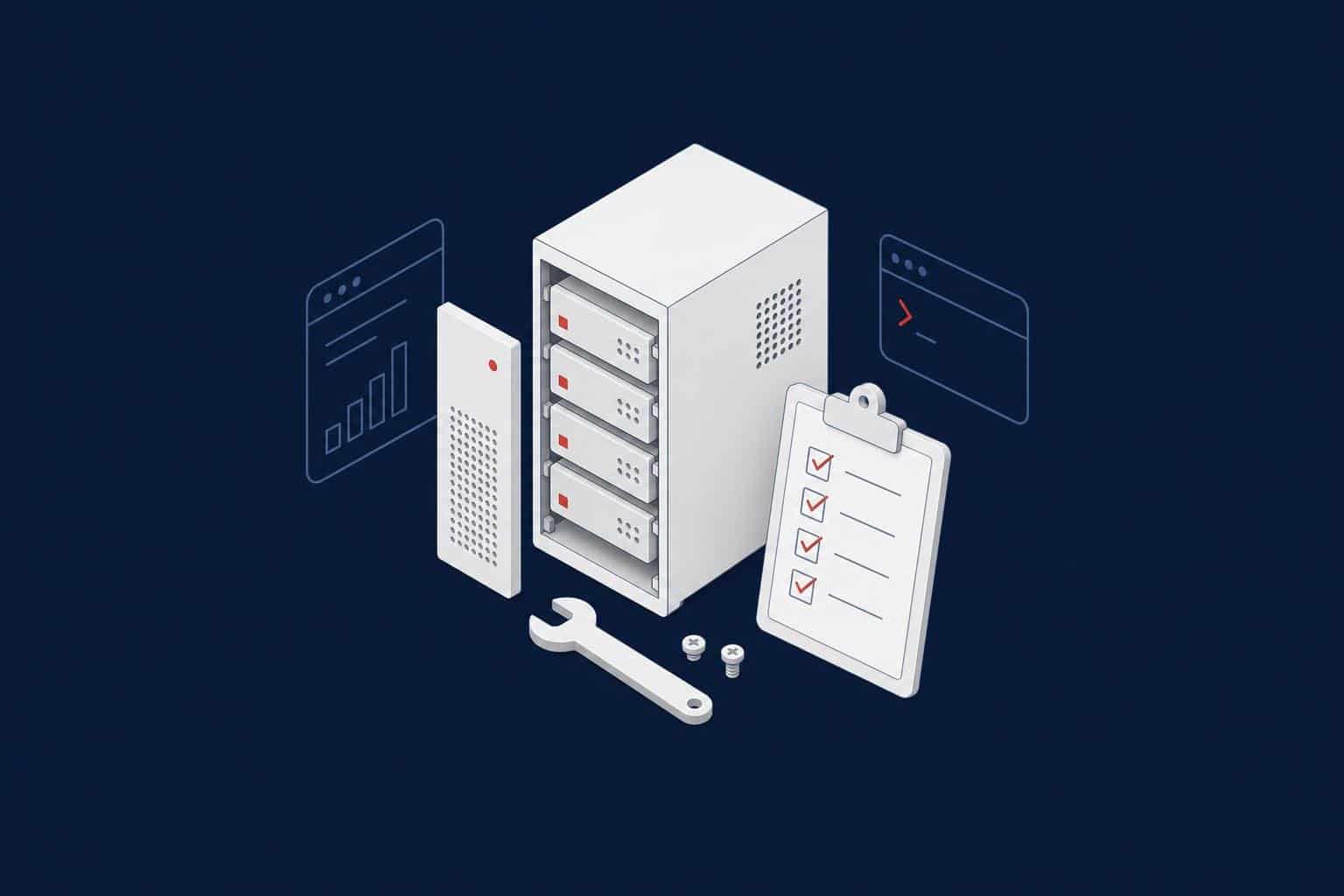
This checklist covers a production SQL Server installation on Windows in four stages: planning, Windows preparation, choices during setup and post-installation configuration. For the details of each item, we link to the relevant guides.
Building a new SQL Server?
Aryasoft plans, installs and configures SQL Server for your workload, and delivers a documented, validated system.
1. Planning
- Version and edition: choose the latest version your application vendor supports; pick the edition based on real core, memory and high availability needs. Details are in our version guide.
- Collation: the server collation is one of the hardest settings to change later. Confirm the collation the application requires in advance; see our collation guide.
- Service accounts: use a separate, least-privileged account for each service: virtual accounts (
NT Service\MSSQLSERVER) on standalone servers, or a group managed service account (gMSA) when domain resources are needed (step by step in our gMSA setup guide). Never use a personal user account as a service account. - Disk layout: plan separate volumes for data, log, TempDB and backups.
- High availability: if you need Always On, a failover cluster or log shipping, settle server naming, networking and storage design before installing.
2. Windows Preparation
- Operating system: a Windows Server version supported by your SQL Server version; a clean installation with all updates applied.
- Power plan: the High Performance power plan in Windows; BIOS power management set to OS control or high performance. Details in our power plan article.
- Disk formatting: format the volumes that will hold SQL Server files with a 64 KB allocation unit size. Details in our disk storage guide.
- Page file: on the system drive, large enough for a memory dump; not on SQL Server disks. See our page file guide.
- Active Directory: the computer object in the right OU; the Group Policies linked to that OU (user rights, firewall, update policy) applied and verified with
gpresult. - Network and firewall: the SQL Server port (a static port is recommended), the DAC port if needed and access from application servers; SPNs for Kerberos.
- Windows updates: automatic restarts off, updates applied in a controlled maintenance window.
Warning
Antivirus scanning that interferes with SQL Server data, log and backup files, TempDB and the sqlservr.exe process can cause serious performance problems and even file corruption. Before installing, agree on Microsoft’s recommended folder, extension and process exclusions with the security team, and verify that they’re actually applied.
3. Choices During Setup
- Features: install only the components you really need. Every unused service is an extra surface to patch and secure.
- Instant File Initialization: tick “Grant Perform Volume Maintenance Task privilege” on the Server Configuration page. See our IFI guide.
- Authentication: Windows Authentication only if possible; Mixed Mode only if the application requires it. Add an AD group, not individuals, as sysadmin.
- Directories: point the default data, log and backup directories to the planned volumes; don’t use the system drive.
- TempDB: on the TempDB page of setup, set the number of data files based on the processor count (up to 8), with equal sizes and fixed MB growth, on a separate volume. See our TempDB guide.
- MAXDOP and memory: from SQL Server 2019, setup recommends values for MAXDOP and max server memory; review and accept them.
Tip
After running setup once through the wizard, keep the ConfigurationFile.ini it creates. Installing later servers from the command line with the same file guarantees every server gets the same choices, and documents the installation itself.
4. Post-Installation Configuration
Patching and version
Install the latest cumulative update, allowing a short evaluation period after its release, and avoid known problematic builds. See dangerous SQL Server builds.
Instance settings
- Max server memory, leaving room for the operating system and other services.
- MAXDOP and cost threshold for parallelism, based on the NUMA layout and workload.
- Lock Pages in Memory, after assessing the need.
- Backup compression and backup checksum on by default.
remote admin connectionsenabled, so you can connect through the DAC in a crisis.- Fixed MB growth settings and the right recovery model in the model database.
Security
- The sa account disabled or renamed; a password policy enforced.
- Unneeded features such as xp_cmdshell and OLE Automation turned off.
- A trusted certificate assigned for connection encryption.
- Auditing configured. See our security hardening guide.
Operations
- Database Mail, operators, a fail-safe operator and alerts for serious errors. See our SQL Server Agent guide.
- Backup jobs aligned with RPO and RTO targets; the first restore test done.
- DBCC CHECKDB, index and statistics maintenance scheduled.
- The number of error log files raised, and the log cycled regularly.
- Monitoring in place and a baseline being collected.
5. Validation: Key Settings in One Query
Before handing over the installation, check the key settings in one go:
SELECT SERVERPROPERTY('ProductVersion')     AS version,
       SERVERPROPERTY('ProductUpdateLevel') AS cu,
       SERVERPROPERTY('Edition')            AS edition,
       SERVERPROPERTY('Collation')          AS server_collation,
       (SELECT instant_file_initialization_enabled FROM sys.dm_server_services
        WHERE servicename LIKE N'SQL Server (%')                             AS ifi_enabled,
       (SELECT sql_memory_model_desc FROM sys.dm_os_sys_info)               AS memory_model,
       (SELECT COUNT(*) FROM tempdb.sys.database_files WHERE type_desc = N'ROWS') AS tempdb_data_files;

SELECT name, value_in_use
FROM sys.configurations
WHERE name IN (N'max server memory (MB)', N'max degree of parallelism',
               N'cost threshold for parallelism', N'backup compression default',
               N'backup checksum default', N'remote admin connections',
               N'xp_cmdshell', N'priority boost');
Note
The installation document matters as much as the installation itself. Server name, version and build, service accounts, disk layout, setting values and the reasons for them, and the backup and maintenance plan should be collected in one document. It’s the first thing people look for when the team changes or a migration comes up.
If You’re Moving to a New Server
This list applies as much to moving from an old server to a new one as to new installations. A migration also requires moving logins with their SIDs, transferring Agent jobs, linked servers, credentials and other server objects, and confirming that the new server is as powerful as the old one. We cover these in detail in our SQL Server 2025 upgrade guide.
Related Reading
- SQL Server Health Check: What It Should Cover (12-Area Checklist)
- Which SQL Server Version Should You Use? 2025 vs 2022 vs 2019 and Choosing an Edition
- SQL Server 2025 Upgrade Guide: Upgrade Paths, Breaking Changes and a Step-by-Step Plan
- How to Install SQL Server on Linux: SQL Server 2025 on Ubuntu 24.04, Step by Step
SQL Server Installation and Configuration
Build your server right from day one
Aryasoft’s senior DBA team plans, installs, configures and validates SQL Server for your workload, and delivers an easy-to-maintain system with every decision and setting documented.