A running SQL Server’s configuration drifts over time: someone changes a setting to fix a problem and never reverts it, a new database is added with default settings, old settings aren’t carried over when a server is replaced. Most of these settings don’t cause a major crisis on their own, but together they make the server slower and more fragile every day than it needs to be.
This guide is a checklist for reviewing an existing SQL Server’s configuration: the Windows level (including the power plan and unnecessary services), instance settings and database settings. If you’re building a new server, start with our installation checklist.
When were your server settings last reviewed?
Aryasoft reviews your SQL Server configuration from Windows to database settings, and fixes risky and missing settings in priority order.
1. Windows Level
Power plan
Windows uses the Balanced power plan by default. It lowers the CPU frequency to save energy and raises it when load arrives; on a database server, that means inconsistent and longer-than-necessary query times. Use the High Performance plan on SQL Server machines.
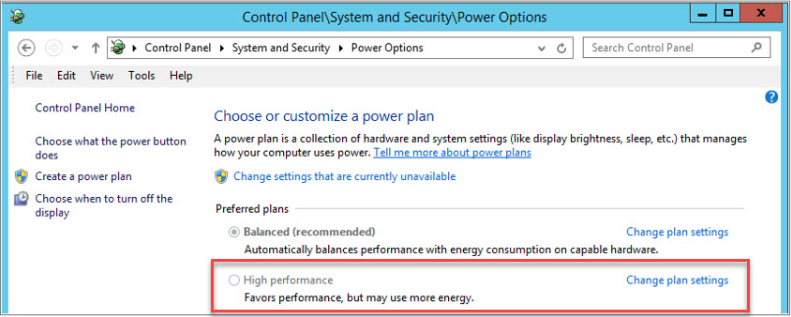
# Show the active power plan
powercfg /getactivescheme

# Activate the High Performance plan
powercfg /setactive 8c5e7fda-e8bf-4a96-9a85-a6e23a8c635c
Tip
Even with High Performance selected in Windows, power management in the BIOS can still throttle the CPU. Set the BIOS power setting to “OS Control” or “Maximum Performance”. On virtual machines, also check the hypervisor’s power policy; the setting inside the VM doesn’t change the physical host’s behavior.
Unnecessary instances and services
Every unused SQL Server service (Reporting Services, Analysis Services, Integration Services, Full-Text, Browser, or an old test instance) consumes memory and CPU, needs patching and enlarges the attack surface. List the services on the server and set the unused ones to Disabled:
Get-Service | Where-Object { $_.DisplayName -like 'SQL Server*' } |
    Select-Object DisplayName, Name, Status, StartType
If you don’t use named instances, or every instance has a static port, you don’t need SQL Server Browser either.
Other Windows settings
- The page file is on the system drive and large enough for dumps. See our page file guide.
- Antivirus exclusions are defined for SQL Server files and processes.
- Windows updates are controlled; automatic restarts are off.
2. Instance Settings
| Setting | Default | Recommended |
|---|---|---|
| max server memory (MB) | 2,147,483,647 | A limit that leaves room for the operating system |
| max degree of parallelism | 0 | Based on the NUMA layout, usually 8 or lower |
| cost threshold for parallelism | 5 | Start at 30–50 and tune by measurement |
| optimize for ad hoc workloads | 0 | 1 |
| backup compression default | 0 | 1 |
| backup checksum default | 0 | 1 |
| remote admin connections | 0 | 1 |
| priority boost | 0 | 0 |
| lightweight pooling | 0 | 0 |
| xp_cmdshell | 0 | 0 |
See the current values in one query:
SELECT name, value_in_use, is_dynamic
FROM sys.configurations
WHERE name IN (N'max server memory (MB)', N'max degree of parallelism',
               N'cost threshold for parallelism', N'optimize for ad hoc workloads',
               N'backup compression default', N'backup checksum default',
               N'remote admin connections', N'priority boost',
               N'lightweight pooling', N'xp_cmdshell', N'clr enabled')
ORDER BY name;
For details on each setting: max server memory, MAXDOP and cost threshold, optimize for ad hoc workloads, priority boost. Also check the state of Instant File Initialization and Lock Pages in Memory.
3. Database Settings
Even with the instance configured correctly, individual databases can carry risky settings. The query below lists the problems we see most often:
SELECT name,
       is_auto_close_on,
       is_auto_shrink_on,
       page_verify_option_desc,
       is_auto_create_stats_on,
       is_auto_update_stats_on,
       recovery_model_desc,
       compatibility_level,
       SUSER_SNAME(owner_sid) AS owner_name,
       is_read_committed_snapshot_on
FROM sys.databases
WHERE database_id > 4
  AND (is_auto_close_on = 1
       OR is_auto_shrink_on = 1
       OR page_verify_option_desc <> N'CHECKSUM'
       OR is_auto_create_stats_on = 0
       OR is_auto_update_stats_on = 0
OR SUSER_SNAME(owner_sid) IS NULL);- AUTO_CLOSE: should be off. When on, the database closes when the last connection closes and reopens on the first one, which means delays and lost cache.
- AUTO_SHRINK: should be off (see the warning below).
- PAGE_VERIFY: should be CHECKSUM. Databases moved from older versions may still have TORN_PAGE_DETECTION or NONE, which means disk corruption is noticed late.
- Statistics: AUTO_CREATE and AUTO_UPDATE should be on.
- Recovery model: must match the backup plan; databases in FULL without log backups make the log fill up.
- Owner: shouldn’t be the account of someone who left; databases without a valid owner fail some operations.
- Compatibility level: should be chosen deliberately. See our compatibility level guide.
Warning
A database with AUTO_SHRINK on shrinks its file whenever free space appears, then grows it again as data grows. This cycle causes serious index fragmentation, unnecessary I/O and autogrowth waits. Turn AUTO_SHRINK off and manage file sizes in a planned way. See our shrink guide.
-- Example fixes
ALTER DATABASE SalesDB SET AUTO_CLOSE OFF;
ALTER DATABASE SalesDB SET AUTO_SHRINK OFF;
ALTER DATABASE SalesDB SET PAGE_VERIFY CHECKSUM;
ALTER AUTHORIZATION ON DATABASE::SalesDB TO sa;
After switching to PAGE_VERIFY CHECKSUM, existing pages aren’t protected right away; the checksum is added the next time each page is written.
4. Files and TempDB
- Data and log files grow in fixed MB, not by percentage. See our autogrowth guide.
- TempDB has equally sized data files based on the processor count (up to 8). See our TempDB guide.
- Data, log and TempDB are on separate volumes.
Configuration Checklist
- High performance power settings in Windows and the BIOS.
- Unused SQL Server services and instances are off.
- The values in the instance settings table are chosen deliberately.
- No database has AUTO_CLOSE or AUTO_SHRINK on; PAGE_VERIFY is CHECKSUM.
- Recovery models match the backup plan; database owners are correct.
- File growth settings and TempDB configuration are checked.
- The reason for every non-default setting is documented.
Related Reading
SQL Server Consulting
Manage your configuration by checking, not assuming
Aryasoft’s senior DBA team reviews your Windows, instance and database settings one by one, fixes risky and missing settings in priority order without downtime, and documents every decision.