
Changing Collation in SQL Server
You’ve probably already heard the term “Collation” in SQL Server. Collation is a configuration that determines how character data is sorted. It’s an important setting that has a big impact on how the SQL Server database service behaves when working with character data. In this post, we’ll discuss collations in general and walk through a few examples.
Where Can You Find Collations?
You can find SQL Server collation settings at the database and column level. Another important thing to know is that the collation setting doesn’t need to match at the server, database, and column level. You can also update your queries to use a specific collation. Since inconsistent collation makes unexpected issues much more likely, this is exactly where you’ll see why configuring the right collation in your environment matters.
Let’s Explain Some Specific Collation Types:
CS — case-sensitive
AI — accent-insensitive
KS — kana-sensitive
WS — width-sensitive
SC — supplementary characters
UTF8 — encoding standard
Let’s run the following query to get the full list of collations available in SQL Server.
SELECT * FROM sys.fn_helpcollations();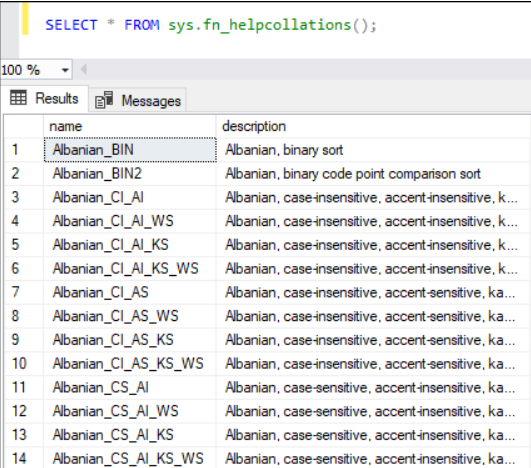
Collation Levels
Collation settings can be maintained at four levels in SQL Server. These levels are:
- Server level
- Database level
- Column level
- Query level
Server Level
This is selected during SQL Server setup and becomes the default collation setting for every other database and user.
If you want to change this setting after installation, you first need to export all the databases’ objects and data, and then rebuild the master database. Once the master database has been rebuilt, the databases and data are imported back in. Instead of changing the collation setting at the whole-server level, you can also choose a collation setting at the database level when creating a database.
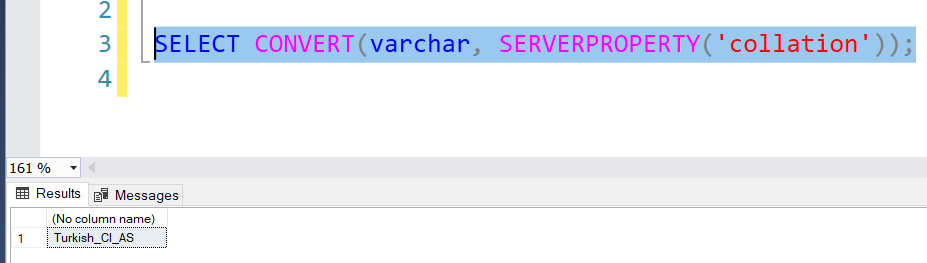
>>> SELECT CONVERT(varchar, SERVERPROPERTY(‘collation’));
The code above lets you query the server’s current collation setting.
Collation at the Database Level
This is chosen when a database is created. If it isn’t chosen during database creation, the collation selected at the server level is used by default. It can be selected using the COLLATE command during database creation or alteration.
The collation setting for the system databases can’t be changed without changing the collation at the server level.
The database’s collation setting applies to all the information belonging to that database. When a database’s collation setting is changed, queries working with temporary tables may throw an error. This happens because temporary tables are held in the tempdb database. To avoid these kinds of errors, you should set the collation at the query level using the COLLATE command.
Need expert support for SQL Server?
Our senior database team supports SQL Server performance tuning, health checks, migrations, Remote DBA services and urgent operational issues.
Specifying the collation setting while creating a database, and querying the information of the created database:
USE master;

GO

CREATE DATABASE TestDb

COLLATE Latin1_General_100_CS_AS_SC;

GO

--Retrieving the existing database's information.

SELECT name, collation_name

FROM sys.databases

WHERE name = N'TestDb';

GO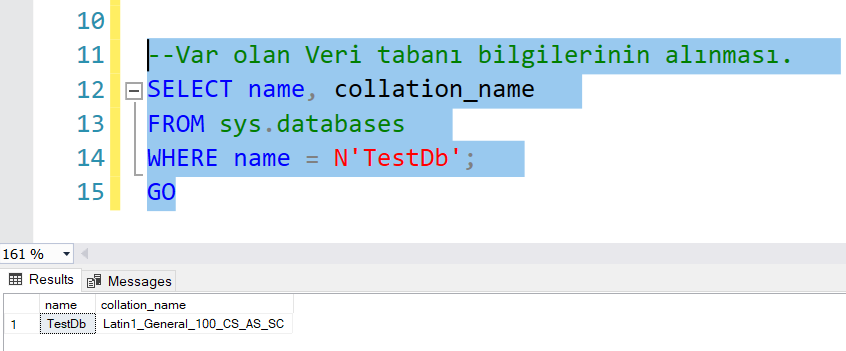
As in the example code below, you can change a database’s collation setting. A collation change made at the database level doesn’t affect settings made at the column level.
ALTER DATABASE myDB COLLATE Spanish_CS_AI;You can also retrieve a specific database’s collation setting using the code below.
SELECT CONVERT (VARCHAR(50), DATABASEPROPERTYEX('database_name','collation'));Collation Setting at the Column Level
While creating a table, each column’s collation can be set individually using the COLLATE command; if no collation setting is specified, the database’s collation is selected by default.
You can change the settings of existing columns using ALTER TABLE.
ALTER TABLE table ALTER COLUMN columnName NVARCHAR(10) COLLATE Spanish_CS_AI;Query-Based Collation Setting
A query-based collation setting is set at query runtime using the COLLATE command. It’s especially used in ORDER BY operations.
SELECT name FROM products ORDER BY name COLLATE Latin1_General_CS_AI;Collation Conflicts
SQL Server supports several collations. However, it can’t handle collation mismatches on its own. When you try to compare fields that have different collations, SQL Server throws an error about the collation names. Here’s the error message:
A similar operation can’t resolve the collation conflict between “Latin1_General_CI_AI” and “SQL_Latin1_General_CP1_CI_AS”.
If we want to avoid these conflicts, we need to add a default collation to the SQL statement.
COLLATE DATABASE_DEFAULT

WHERE Column1 COLLATE DATABASE_DEFAULT = Column2
This issue can cause problems when programming against SQL Server. As explained above, we can resolve this by using the COLLATE clause together with a SQL Server column-comparison clause. When SQL Server is installed for the first time with the wrong collation option, it can cause issues related to tempdb usage. Whenever the SQL Server service is restarted, tempdb is recreated using the default server-level collation.
Related Reading
SQL Server Consulting
Do You Need Expert Support for Your SQL Server Environment?
Aryasoft’s senior database team provides end-to-end consulting, from SQL Server performance tuning to architecture decisions.