
Improve SQL Server Performance by Enabling Instant File Initialization
Category: Performance
What Is Instant File Initialization (IFI)?
Instant File Initialization is a Windows feature that lets your SQL Server skip the zero-write step and immediately start using the space allocated for data files.
IFI allows SQL Server to reduce the time needed to create a database (including TEMPDB at server startup), reduce data file growth time, and minimize database restore time, especially for large databases.
While Instant File Initialization is in use, previously deleted disk content in that specific area of the data file could be accessible to an unauthorized party until new data is written over it — since only new data being written overwrites the deleted disk content.
If SQL Server is running in a physically secure environment, the performance benefits can outweigh the security risk, which is why this is generally recommended.
Notes:
- Log files don’t benefit from this.
- If TDE (Transparent Data Encryption) is enabled, the database can’t take advantage of Instant File Initialization.
- Instant File Initialization is only available on Microsoft Windows XP Professional or Windows Server 2003 and later.
How Do You Check Whether Instant File Initialization Is Enabled?
One way to find the status of instant file initialization is to check the error logs. You can run the following script:
exec xp_readerrorlog 0, 1, N'Database Instant File Initialization'You can also use the sys.dm_server_services DMV with the following script:
SELECT ServiceName, status_desc,

instant_file_initialization_enabled

FROM sys.dm_server_services
How Do You Enable It?
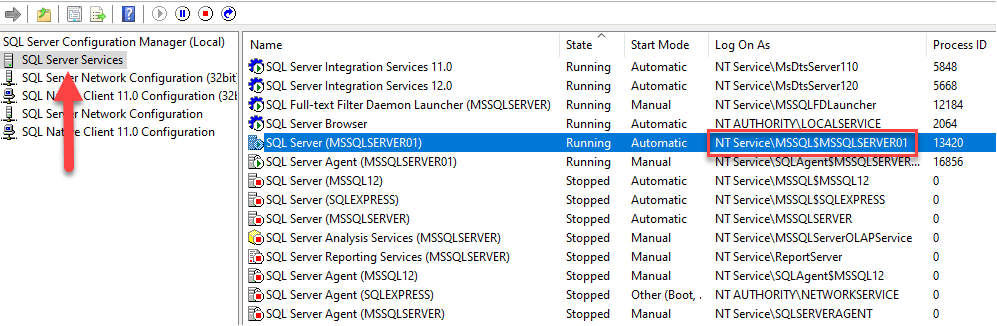
First, open SQL Server Configuration Manager to see the account name of the SQL Server instance:
Need expert support for SQL Server?
Our senior database team supports SQL Server performance tuning, health checks, migrations, Remote DBA services and urgent operational issues.
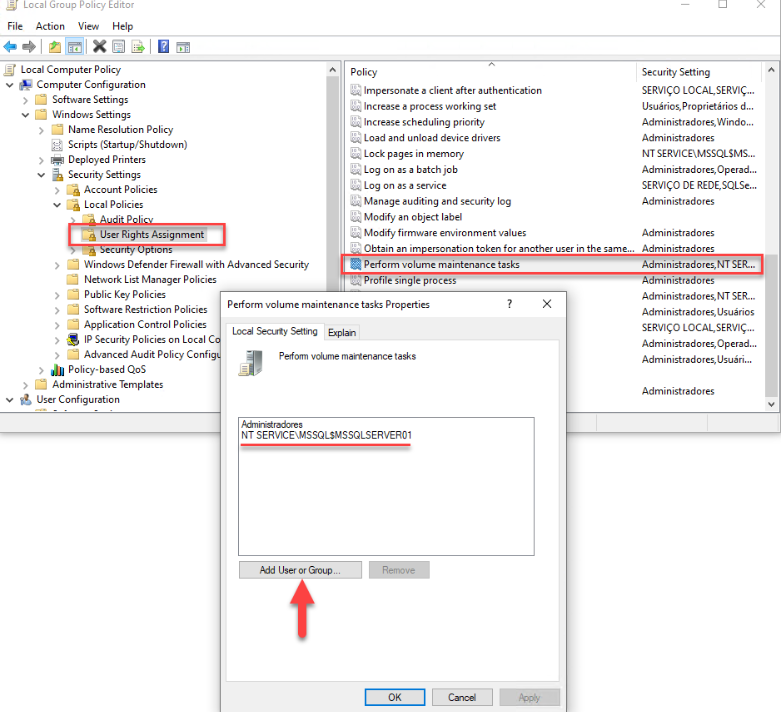
- Run GPEDIT.MSC or secpol.msc.
- Go to Computer Configuration.
- Select Windows Settings.
- Go to Security Settings.
- Select Local Policies.
- Go to User Rights Assignment.
- Go to the “Perform Volume Maintenance Tasks” option.
- Add your SQL Server service account, then click OK.
- Restart the SQL Server services.
Related Reading
SQL Server Performance Consulting
Are You Confident in Your SQL Server Performance?
Aryasoft runs an end-to-end analysis of your query performance, indexing, memory, and disk configuration, and delivers concrete steps for improvement.