TABLE OF CONTENTS
- •Trace Flags vs. Other SQL Server Settings
- •Let's review your server configuration
- •Trace Flag Scopes: Global, Session and Query
- •How to Make a Trace Flag Permanent
- •Trace Flags Still Worth Knowing
- •Trace Flags You Can Retire
- •Prefer Database Scoped Configurations and Query Hints
- •How to Audit Trace Flags on Your Servers
- •Know exactly why every setting is there
Trace flags are switches that change specific SQL Server behaviors: what gets written to the error log, how the query optimizer behaves, how locks escalate. Many DBAs inherit servers with a list of trace flags in the startup parameters that nobody can explain anymore. Some of them still matter, some have done nothing for years, and a few should never be on permanently.
This guide explains how trace flags work and how they differ from other SQL Server settings, how to turn them on safely and make them permanent, which trace flags are still worth knowing, which ones you can retire, and how to audit what’s enabled on your servers.
Trace Flags vs. Other SQL Server Settings
“SQL Server flags” can mean several different things. They’re configured in different places and behave differently:
| Setting type | Where it’s set | Examples |
|---|---|---|
| Trace flags | DBCC TRACEON, the -T startup parameter or the QUERYTRACEON hint |
3226, 1222, 4199 |
| Startup parameters | SQL Server Configuration Manager; applied when the service starts | -m (single-user mode), -T3226 |
| Server configuration options | sp_configure |
max server memory, backup checksum default |
| Database scoped configurations | ALTER DATABASE SCOPED CONFIGURATION |
QUERY_OPTIMIZER_HOTFIXES, LEGACY_CARDINALITY_ESTIMATION |
Since SQL Server 2016, many behaviors that once needed a trace flag have become regular options, at the database or query level. When an option exists, it’s the better choice: it’s visible, documented in the database itself and doesn’t affect the whole instance.
Let's review your server configuration
Aryasoft's senior DBA team reviews your trace flags, startup parameters and server settings, removes what no longer helps and documents what stays.
Trace Flag Scopes: Global, Session and Query
A trace flag works at one of three scopes:
- Global: affects every connection on the instance. Turn it on with
DBCC TRACEONand the-1argument, or with the-Tstartup parameter. - Session: affects only the current connection. Use
DBCC TRACEONwithout-1; the flag is gone when the session ends. - Query: affects a single statement through the
QUERYTRACEONhint. This works only for the query optimizer trace flags that Microsoft documents for it.
Not every flag supports every scope. Some, such as 3226 or 1222, work only globally.
-- Turn a trace flag on globally (until the next restart)
DBCC TRACEON (3226, -1);
-- Turn it off again
DBCC TRACEOFF (3226, -1);
-- List all globally enabled trace flags
DBCC TRACESTATUS (-1);
-- Query scope: only for supported query optimizer trace flags
SELECT OrderID, Total
FROM dbo.Orders
WHERE CustomerID = 42
OPTION (QUERYTRACEON 4199);
How to Make a Trace Flag Permanent
A flag enabled with DBCC TRACEON disappears at the next restart, including an unplanned failover. To keep it, add it as a startup parameter:
- Open SQL Server Configuration Manager, right-click the SQL Server service and choose Properties.
- On the Startup Parameters tab, add
-T3226(one parameter per flag) and click Add. - Restart the service, or also run
DBCC TRACEON (3226, -1)so the flag takes effect now.
On Linux, use mssql-conf, for example sudo /opt/mssql/bin/mssql-conf traceflag 3226 on, then restart the service. In a failover cluster or an availability group, add the same startup parameters on every node, or behavior will change after a failover.
Critical
Some trace flags are emergency tools, not settings. Trace flag 902 skips the database upgrade scripts after a failed Cumulative Update; Microsoft says it isn’t supported to run it continuously, and the scripts must still complete for the update to be whole. Trace flag 7745 stops Query Store from flushing data at shutdown, so unflushed Query Store data can be lost. Never leave either one in the startup parameters “just in case”.
Trace Flags Still Worth Knowing
| Trace flag | What it does | When to use it |
|---|---|---|
| 3226 | Suppresses successful backup and restore messages in the error log. Failures are still logged. | Almost always, on servers with frequent log backups. It keeps the error log readable. |
| 1222 / 1204 | Write deadlock details to the error log; 1222 in XML-like format, 1204 as text. | Rarely needed today. Microsoft advises avoiding them on deadlock-heavy systems; use the system_health session instead. |
| 1224 | Disables lock escalation based on the number of locks; memory pressure can still escalate. | Specific escalation problems. Prefer ALTER TABLE ... SET (LOCK_ESCALATION = ...) for single tables. Avoid 1211, which disables escalation even under memory pressure. |
| 4199 | Enables query optimizer fixes released in Cumulative Updates. | Since SQL Server 2016, use the QUERY_OPTIMIZER_HOTFIXES database scoped configuration or the ENABLE_QUERY_OPTIMIZER_HOTFIXES hint instead. |
| 15097 | Enables AVX-512 support in SQL Server 2022 Enterprise edition. | Only after testing on hardware that supports it. |
| 17600 | Keeps the OLE DB 18 driver behavior for linked servers in SQL Server 2025. | As a temporary bridge while you fix linked server encryption settings. |
Trace Flags You Can Retire
Many trace flag lists online still recommend flags that stopped doing anything years ago. If your server runs SQL Server 2016 or later, these are candidates for removal:
| Trace flag | Old purpose | Today |
|---|---|---|
| 1117 | Grow all files in a filegroup together | No effect since SQL Server 2016; use AUTOGROW_ALL_FILES on the filegroup. See our autogrowth guide. |
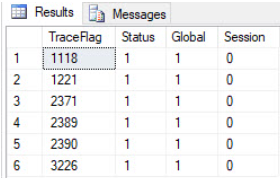
| 1118 | Uniform extents to reduce tempdb contention | No effect since SQL Server 2016; controlled by MIXED_PAGE_ALLOCATION. See tempdb best practices. |
| 2371 | Dynamic auto-update statistics threshold | No effect from SQL Server 2016 at compatibility level 130 and above; it’s the default behavior. |
| 3023 | CHECKSUM on every backup |
Since SQL Server 2014, use the backup checksum default server option. |
| 460 | Detailed “string or binary data would be truncated” message | Default at compatibility level 150 and above; also VERBOSE_TRUNCATION_WARNINGS. |
| 7412 | Lightweight query profiling | On by default since SQL Server 2019. |
| 7752 | Asynchronous Query Store load | Handled by the engine since SQL Server 2019. |
| 2389 / 2390 | Quick statistics for ascending keys | Don’t apply to the new cardinality estimator (CE 120 and above); Microsoft points to trace flag 4139 instead. |
Note
A retired flag left in the startup parameters usually does no harm, but it misleads the next person who reads the configuration. They may assume, for example, that 1117 still controls file growth while the filegroup setting says otherwise. Remove these flags during your next maintenance window and record why.
Prefer Database Scoped Configurations and Query Hints
When a behavior has a documented option, use it instead of a trace flag. A database scoped configuration affects only one database and is visible in sys.database_scoped_configurations; a USE HINT affects only one query and documents itself in the code:
-- Instead of trace flag 4199 for the whole instance
ALTER DATABASE SCOPED CONFIGURATION SET QUERY_OPTIMIZER_HOTFIXES = ON;
-- Or only for one query
SELECT OrderID, Total
FROM dbo.Orders
WHERE CustomerID = 42
OPTION (USE HINT ('ENABLE_QUERY_OPTIMIZER_HOTFIXES'));
-- See what is set for the current database
SELECT name, value
FROM sys.database_scoped_configurations
ORDER BY name;
How to Audit Trace Flags on Your Servers
Compare what’s running now with what will be running after the next restart. They often differ, because someone enabled a flag with DBCC TRACEON and never added it to the startup parameters, or the other way round:
-- What is active right now
DBCC TRACESTATUS (-1);
-- What the service starts with (startup parameters such as -T3226)
SELECT value_name, value_data
FROM sys.dm_server_registry
WHERE value_name LIKE N'SQLArg%';
For every flag you find, answer three questions: what does it do on this version, is there a documented option that replaces it, and who decided to enable it and why. Keep the answers in your server documentation. As with any configuration change, test before changing production.
Related Reading
SQL Server Consulting
Know exactly why every setting is there
Aryasoft’s senior DBA team audits trace flags, startup parameters and server and database configurations, removes what no longer helps and documents every setting that stays.