TABLE OF CONTENTS
- •Are your overnight jobs really running?
- •1. Job Owners: Don’t Use Personal Accounts
- •2. Notifications: Don’t Let a Failed Job Stay Silent
- •The fail-safe operator
- •3. Job History: The Defaults Are Too Low
- •4. Overlapping Schedules
- •5. Permissions: Use Proxies and Credentials
- •6. Make Job Steps Resilient
- •7. Jobs in Always On Environments
- •Agent Checklist
- •Make your Agent jobs reliable
SQL Server Agent is the invisible operations team that runs your backups, CHECKDB, index maintenance, ETL and reports. Often nobody looks at it after installation, until someone notices that the backup job has been failing silently for weeks, that job history was purged right when it was needed, or that overnight jobs stopped together with the account of an employee who left.
This guide brings the practices that make Agent reliable into one place: job owners, notifications and the fail-safe operator, job history retention, overlapping schedules, permissions, and managing jobs in Always On environments.
Are your overnight jobs really running?
Aryasoft organizes your Agent jobs, notifications and maintenance plans, and acts on a failed job before you notice it.
1. Job Owners: Don’t Use Personal Accounts
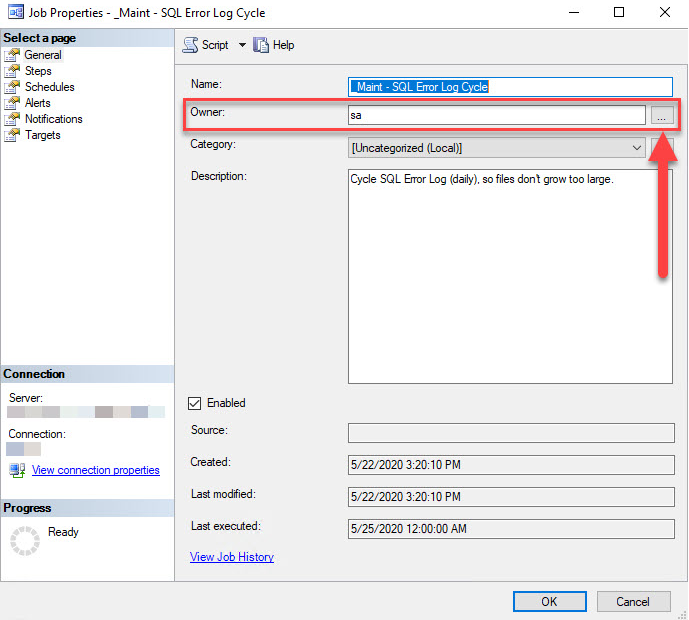
By default, the login of whoever creates a job becomes its owner. When that person leaves and their Active Directory account is disabled, or when the domain controller is briefly unreachable, the job fails because the owner’s access can’t be verified. It usually happens exactly at night, when nobody is watching.
Make jobs owned by sa or by a dedicated, non-personal login. To find jobs owned by personal accounts:
SELECT j.name AS job_name,
       SUSER_SNAME(j.owner_sid) AS owner_name,
       j.enabled
FROM msdb.dbo.sysjobs AS j
WHERE SUSER_SNAME(j.owner_sid) IS NULL          -- jobs whose owner no longer exists
   OR SUSER_SNAME(j.owner_sid) <> N'sa'
ORDER BY owner_name, job_name;

-- Change the owner
EXEC msdb.dbo.sp_update_job @job_name = N'Nightly Backup', @owner_login_name = N'sa';
The same setting can be changed in the Owner field on the General page of the job properties:
2. Notifications: Don’t Let a Failed Job Stay Silent
Users shouldn’t be the first to notice that a job failed. Three pieces have to work together: a working Database Mail profile, that profile assigned to Agent, and an operator defined on the jobs.
- Configure Database Mail and send a test email.
- Enable the mail profile on the Alert System page of the Agent properties. The change takes effect when the Agent service restarts.
- Create an operator that goes to a team address rather than a person (for example
DBA Team). - On every job’s Notifications page, enable an email notification for “When the job fails”.
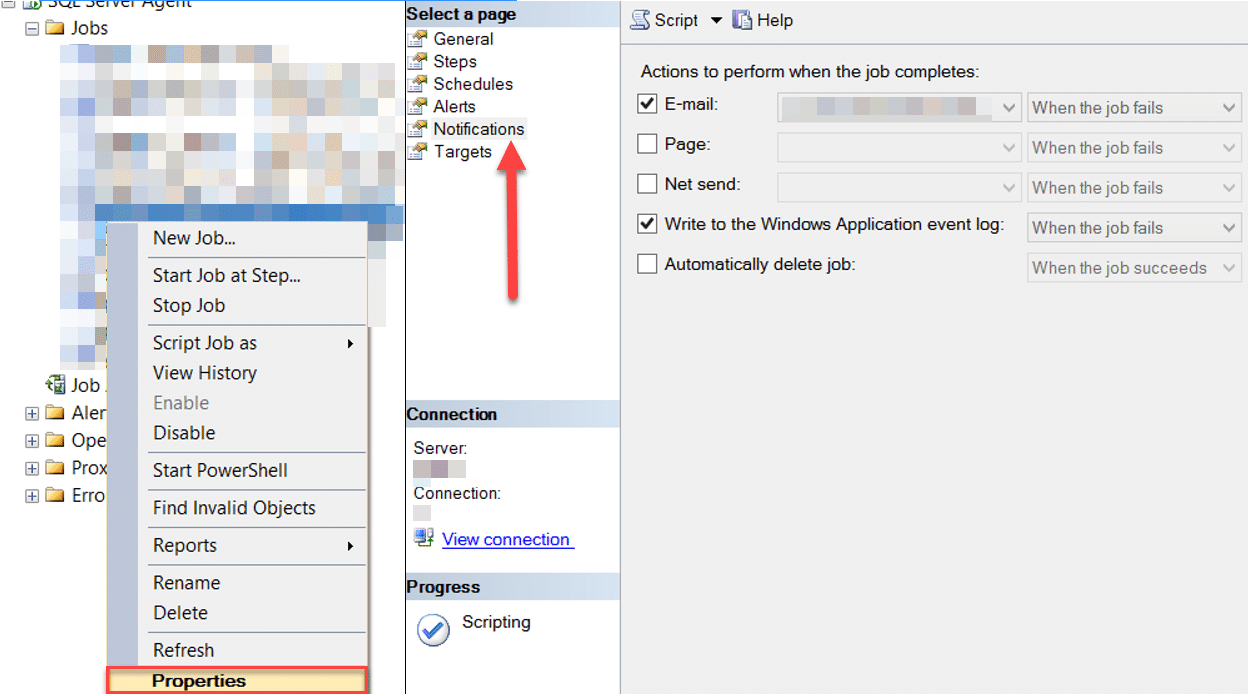
To find enabled jobs without a failure notification:
SELECT j.name AS job_name
FROM msdb.dbo.sysjobs AS j
WHERE j.enabled = 1
  AND (j.notify_level_email = 0 OR j.notify_email_operator_id = 0)
ORDER BY j.name;
The fail-safe operator
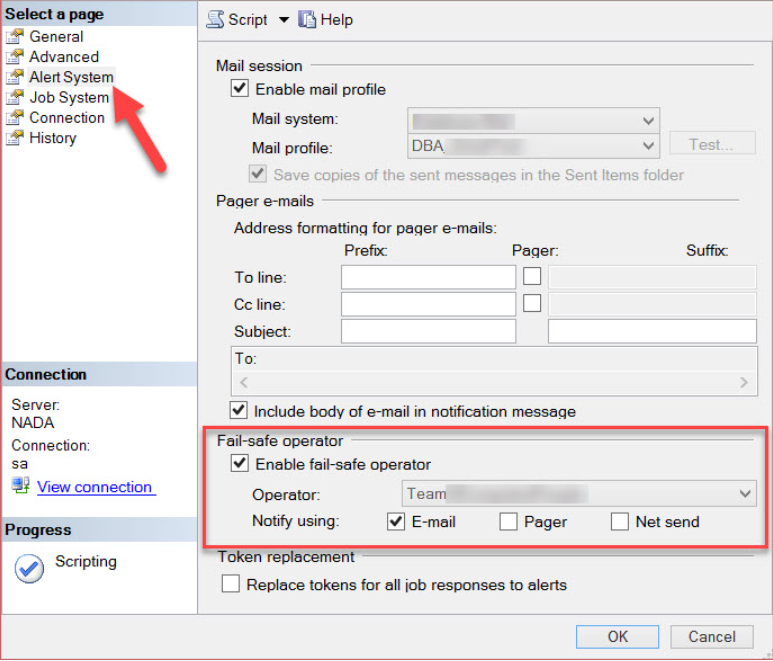
The fail-safe operator is the backup recipient that gets notifications when the regular operator can’t be reached, or when Agent can’t access the operator information in msdb. It also steps in for hours not covered by operators that are set to receive notifications only at certain times. It’s defined on the Alert System page of the Agent properties:
Our SQL Server alerts guide covers how to set up Agent alerts for serious errors and disk corruption.
Warning
If no Database Mail profile is assigned to Agent, the notifications defined on jobs are silently not sent, without any error. After setup, deliberately fail a test job and confirm the email actually arrives; repeat this at least once a year.
3. Job History: The Defaults Are Too Low
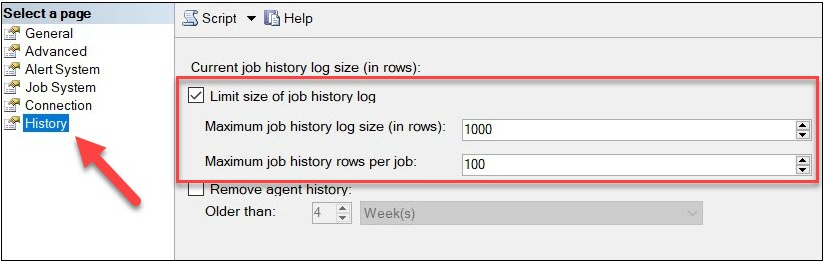
By default, Agent limits job history to 1,000 rows in total and 100 rows per job. A few frequent jobs (for example a log backup every 15 minutes) fill that limit within days and push out the history of every other job. When you need to investigate a problem, the record you need is already gone.
Raise the limits on the History page of the Agent properties; for most environments, tens of thousands of rows in total and a few thousand per job is a reasonable start:
A more predictable approach is to remove the row limit and purge history by age. A weekly job with this command is enough:
DECLARE @oldest datetime = DATEADD(DAY, -60, GETDATE());
EXEC msdb.dbo.sp_purge_jobhistory @oldest_date = @oldest;
Keep an eye on msdb size in that case; msdb databases whose backup and job history is never purged can grow to gigabytes over time.
4. Overlapping Schedules
Backup, index maintenance, CHECKDB and ETL jobs starting at the same time create short but intense CPU and disk pressure, and slow each other down. To find jobs with the same start time:
SELECT STUFF(STUFF(RIGHT(N'000000' + CAST(s.active_start_time AS nvarchar(6)), 6), 5, 0, N':'), 3, 0, N':') AS start_time,
       COUNT(*) AS job_count,
       STRING_AGG(j.name, N', ') AS jobs
FROM msdb.dbo.sysjobs AS j
JOIN msdb.dbo.sysjobschedules AS js ON js.job_id = j.job_id
JOIN msdb.dbo.sysschedules AS s ON s.schedule_id = js.schedule_id
WHERE j.enabled = 1 AND s.enabled = 1
GROUP BY s.active_start_time
HAVING COUNT(*) > 1
ORDER BY job_count DESC;
Spread the jobs in the result apart, especially the heavy ones, either to different times or as consecutive steps in a single sequential job. Check from the job duration trend that maintenance finishes before business hours.
5. Permissions: Use Proxies and Credentials
CmdExec and PowerShell steps run with the permissions of the Agent service account by default. Instead of giving the service account broad rights on file servers or other systems, define a Windows account with the permissions the step needs as a credential, and use it through a proxy. Each step then runs only with the permissions it needs, and the service account stays least-privileged.
6. Make Job Steps Resilient
- For steps that can be hit by network issues or transient blocking, set Retry attempts and Retry interval.
- For steps that produce long output, write it to a file from the Advanced page; the job history message is limited to 4,000 characters.
- Choose deliberately what the next steps do when a step fails (On failure action).
- Keep jobs as scripts in source control, so no job is forgotten when a server is rebuilt or migrated.
7. Jobs in Always On Environments
Agent jobs live in msdb and aren’t synchronized with the availability group. So that jobs can run on the new primary after a failover:
- Create the jobs on every replica and apply changes to all of them.
- In the job’s first step, check whether the replica is primary; exit quietly on a secondary.
- In SQL Server 2022 and later Enterprise edition, a contained availability group can remove this problem by keeping jobs in the group’s own msdb.
-- First job step: exit if this replica isn't primary
IF sys.fn_hadr_is_primary_replica(N'SalesDB') <> 1
BEGIN
    PRINT N'This replica is not primary; job step skipped.';
    RETURN;
END
Tip
Jobs and logins drifting apart between replicas is one of the most common surprises after a failover. A check that regularly compares jobs across replicas exposes the problem before the first real failover does.
Agent Checklist
- Every job is owned by sa or a non-personal login.
- Database Mail works; a mail profile is assigned to Agent and tested.
- Every enabled job sends failure notifications to a team operator; a fail-safe operator is defined.
- Job history limits are raised or history is purged by age; msdb size is monitored.
- Heavy jobs are spread across different times.
- CmdExec and PowerShell steps run through proxies.
- Jobs are identical across Always On replicas and check for the primary.
- The Agent service starts automatically; jobs are in source control.
Related Reading
Managed DBA Service
Make your Agent jobs reliable
Aryasoft’s senior DBA team sorts out job owners, notifications, history settings and schedules, responds to failed jobs within SLA times and reports every month.