On a well-configured SQL Server, SQL Server’s memory shouldn’t be paged to disk; the buffer pool exists precisely to avoid disk I/O. That’s why the page file question tends to swing to extremes: either “a SQL Server box doesn’t need a page file, turn it off”, or the old “1.5 times RAM” rule gets applied to a server with 512 GB of memory. Both are wrong.
This guide explains what the page file actually does on a SQL Server machine, what its size should be based on, where it belongs, and how to tell whether paging is really a problem.
Are you sure about your server's memory settings?
Aryasoft reviews max server memory, Lock Pages in Memory, the page file and VM memory settings together and configures them for your workload.
What the Page File Does on a SQL Server Machine
SQL Server’s own memory shouldn’t go to disk, but the page file still does three jobs:
- The commit limit: the total virtual memory Windows can hand out to all processes is physical RAM plus the page file size. If the page file is too small or missing, processes can fail to allocate memory even when physical memory is free.
- Crash dumps: when the server stops with a blue screen, Windows writes the memory dump through the page file. Without a page file of the right size, no dump is written and the crash can’t be analyzed.
- Other processes: backup agents, antivirus, monitoring tools and management software use memory too. For their rarely used pages, the page file is a safety margin.
Warning
Don’t disable the page file entirely. Without one, the commit limit equals physical memory, and under memory pressure processes can fail unexpectedly. And when the server crashes, no memory dump can be taken, so you won’t find the cause until the same failure happens again.
What Determines the Size?
The old “1.5 times RAM” rule dates from when servers had a few gigabytes of memory. Today, the main factor in sizing the page file is the type of memory dump you need:
| Dump type | What it contains | Page file requirement |
|---|---|---|
| Small (minidump) | Basic information about the crash | Very small |
| Kernel memory dump | Kernel memory; enough for most crash analysis | A fraction of physical memory; varies with workload |
| Automatic memory dump (Windows default) | Same content as a kernel dump; grows the page file when needed | A system-managed page file |
| Complete memory dump | All of physical memory | At least the size of physical memory, plus a small margin |
On a database server with hundreds of gigabytes of memory, a complete memory dump is rarely needed; it requires a very large page file and a long time to write the dump. For most environments, the practical approach is:
- Leave the dump setting at Kernel memory dump or Automatic memory dump.
- Keep a page file on the system drive large enough for that dump. On many servers, “System managed size” takes care of this.
- If your support team or Microsoft specifically asks for a complete dump, enlarge the page file for that period.
Where Should the Page File Live?
- For memory dumps, the page file needs to be on the system drive (usually C:).
- Don’t put a page file on the disks holding SQL Server data, log or TempDB files. When paging happens, those disks are already under the most load; stacking two workloads on the same disk increases latency.
- If you need an additional page file, place it on a fast disk separate from SQL Server files.
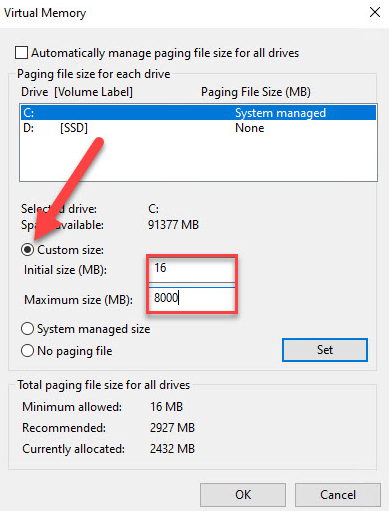
The settings are under System Properties › Advanced › Performance › Settings › Advanced › Virtual memory. To set a custom size, clear “Automatically manage paging file size for all drives”, select the drive, enter the initial and maximum values under Custom size and click Set:
You can see the current state with PowerShell:
# Page file location, allocated size and current / peak usage (MB)
Get-CimInstance Win32_PageFileUsage |
    Select-Object Name, AllocatedBaseSize, CurrentUsage, PeakUsage
Is Paging Actually a Problem?
The page file being used isn’t a problem in itself; what matters is whether SQL Server’s memory is going to disk. Three places tell you:
-- Operating system memory state
SELECT total_physical_memory_kb / 1024     AS total_mb,
       available_physical_memory_kb / 1024 AS available_mb,
       system_memory_state_desc
FROM sys.dm_os_sys_memory;

-- SQL Server process memory state
SELECT physical_memory_in_use_kb / 1024 AS physical_in_use_mb,
       locked_page_allocations_kb / 1024 AS locked_mb,
       memory_utilization_percentage,
       process_physical_memory_low
FROM sys.dm_os_process_memory;

-- Message 17890: SQL Server memory has been paged out
EXEC sys.xp_readerrorlog 0, 1, N'significant part of sql server process memory';
A system_memory_state_desc of “Available physical memory is low”, process_physical_memory_low = 1 and message 17890 in the error log mean the problem is real. The fix then isn’t a bigger page file but finding where the memory goes: first size max server memory correctly, then, if needed, protect SQL Server’s memory with Lock Pages in Memory.
Note
The Memory\Pages/sec counter in Performance Monitor is misleading on its own; it also counts memory-mapped file reads, so it can look high during backups or large file copies. When judging paging, look at Paging File\% Usage together with the SQL Server indicators above.
Page File Checklist
- The page file isn’t disabled; it’s on the system drive and large enough for dumps.
- The dump type is kernel or automatic; complete dumps only when needed.
- No page file on SQL Server data, log or TempDB disks.
- max server memory leaves room for the operating system and other services.
- Message 17890 and
process_physical_memory_loware monitored.
Related Reading
SQL Server Performance Consulting
Configure memory as a whole
Aryasoft’s senior DBA team looks at max server memory, Lock Pages in Memory, the page file and virtual machine memory settings together, measures paging symptoms and configures your server for its workload.