TABLE OF CONTENTS
- •When Do You Need to Restore a SQL Server Database?
- •Need expert support for SQL Server?
- •What to Know Before You Restore
- •Backup types and the restore sequence
- •What the recovery model decides
- •RECOVERY, NORECOVERY and STANDBY
- •Inspect the Backup File Before Restoring
- •How to Restore a Database in SSMS (Step by Step)
- •How to Restore a SQL Server Database with T-SQL
- •Restore from a single full backup
- •Full + differential + log restore sequence
- •Point-in-time restore: going back to a specific moment
- •Tail-log backup: don’t lose the latest transactions
- •Getting exclusive access to an existing database
- •Common SQL Server Restore Errors
- •Post-Restore Checklist
- •How to Make Restores Faster
- •Restore Testing: The Real Test of a Backup
- •Frequently Asked Questions
- •Can Your Backups Actually Be Restored?
Only a restore proves that a backup actually works. Whether you are recovering rows someone deleted by mistake, moving a database to a new server, refreshing a test environment or rescuing a corrupted database, the ability to restore a SQL Server database correctly is a DBA’s last line of defense. But a restore done under pressure, without knowing the right sequence and options, can make things worse by overwriting the data you still had.
This guide covers the SQL Server restore process end to end: what to know before you start, step-by-step restores in SSMS and T-SQL, full + differential + log restore sequences, point-in-time recovery, tail-log backups, the most common restore errors, and the checks you should always run after a restore.
When Do You Need to Restore a SQL Server Database?
A restore rebuilds a database from its backup files. The most common scenarios are:
- User or application error: an
UPDATEorDELETEwithout aWHEREclause, or a table dropped by mistake. Here the goal is usually to return to the moment just before the error. - Hardware or storage failure: a lost disk, damaged data files, or corruption reported through errors 823 and 824.
- Server migration and upgrades: moving a database to a new server or a newer SQL Server version with backup and restore.
- Test and development environments: giving a test environment a recent copy of production data.
- Restore testing: regularly confirming that backups can actually be restored, and how long it takes.
Need expert support for SQL Server?
Our senior database team supports SQL Server performance tuning, health checks, migrations, Remote DBA services and urgent operational issues.
What to Know Before You Restore
Backup types and the restore sequence
Restoring a SQL Server database is rarely a single file. A restore sequence is built from three backup types:
- Full backup: the starting point. Every restore sequence begins with a full backup.
- Differential backup: everything that changed since the last full backup. You only need the most recent differential.
- Transaction log backup: every transaction since the previous log backup. You must restore every log backup taken after the differential, in order, without skipping any.
The order is always: full → latest differential (if any) → every subsequent log backup → recovery. A single missing file in the log chain means nothing after that point can be restored.
What the recovery model decides
The database’s recovery model determines how far back, and how precisely, you can go. Under the simple recovery model there are no log backups, so you can only return to the moment the last full or differential backup was taken. Restoring to a specific minute (point-in-time restore) requires the full recovery model and an unbroken chain of log backups. Under bulk-logged, you can’t stop in the middle of a log backup that contains bulk-logged operations. We cover this in more detail in Simple Recovery Model in SQL Server.
RECOVERY, NORECOVERY and STANDBY
Every RESTORE statement ends by deciding which state the database is left in:
WITH RECOVERY(the default) rolls back uncommitted transactions and brings the database online. No further backups can be restored after this.WITH NORECOVERYleaves the database in the RESTORING state, so the next differential or log backup can be applied. Use it on every step except the last.WITH STANDBYopens the database read-only while still allowing more log backups to be applied. It is very useful when you need to inspect the data to find the right point to stop at.
The most common mistake is using RECOVERY in the middle of a sequence. The remaining log backups can then no longer be applied, and the restore has to start over.
Inspect the Backup File Before Restoring
Looking inside a backup file before you restore it prevents mistakes and saves time. Three statements cover it:
-- Backup sets in the file: type, database name, dates, LSNs, SQL Server version
RESTORE HEADERONLY FROM DISK = N'E:\Backup\SalesDB_FULL.bak';
-- Logical names and original paths of the data and log files in the backup
RESTORE FILELISTONLY FROM DISK = N'E:\Backup\SalesDB_FULL.bak';
-- Check that the backup set is complete and readable
RESTORE VERIFYONLY FROM DISK = N'E:\Backup\SalesDB_FULL.bak' WITH CHECKSUM;
The LogicalName values from FILELISTONLY are what you pass to MOVE when restoring to different folders or under a different name. VERIFYONLY checks that the backup set is complete and readable, verifies checksums if present, and checks for enough space on the destination. As Microsoft notes, however, it doesn’t verify the structure of the data inside the backup. The only way to prove a backup is sound is to restore it and run DBCC CHECKDB.
How to Restore a Database in SSMS (Step by Step)
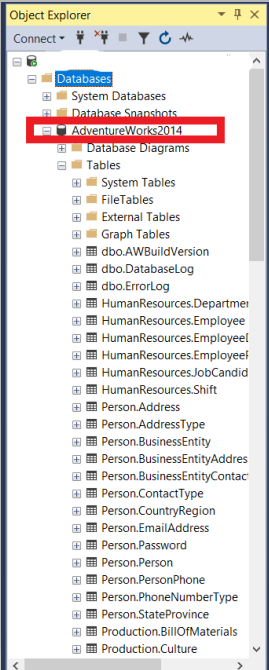
For one-off restores, the Restore Database dialog in SQL Server Management Studio is a practical option. In this example we restore the AdventureWorks2014 database from a .bak file.
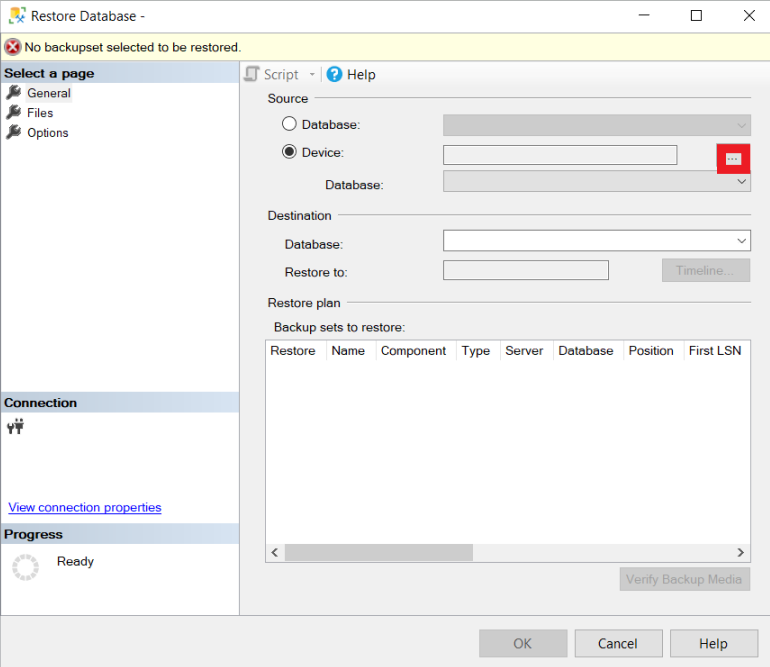
1. Open the restore dialog. In Object Explorer, right-click the Databases folder and choose Restore Database…. If you are restoring over an existing database, you can also right-click that database and choose Tasks → Restore → Database.

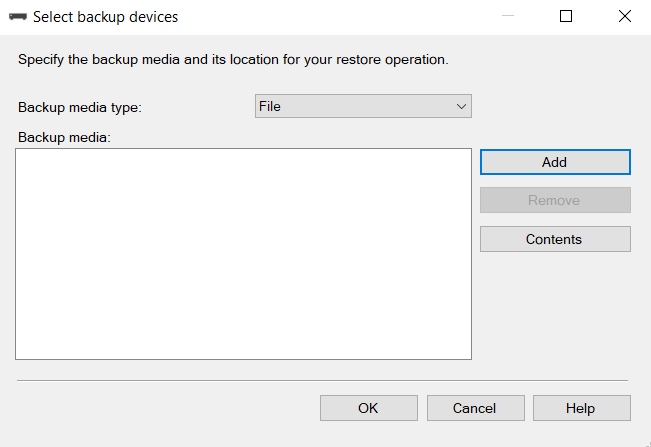
2. Choose the backup source. In the Source section, select Device and click the … button. The Database option only lists databases found in this server’s msdb backup history, so if the backup was taken on another server you need to use Device.

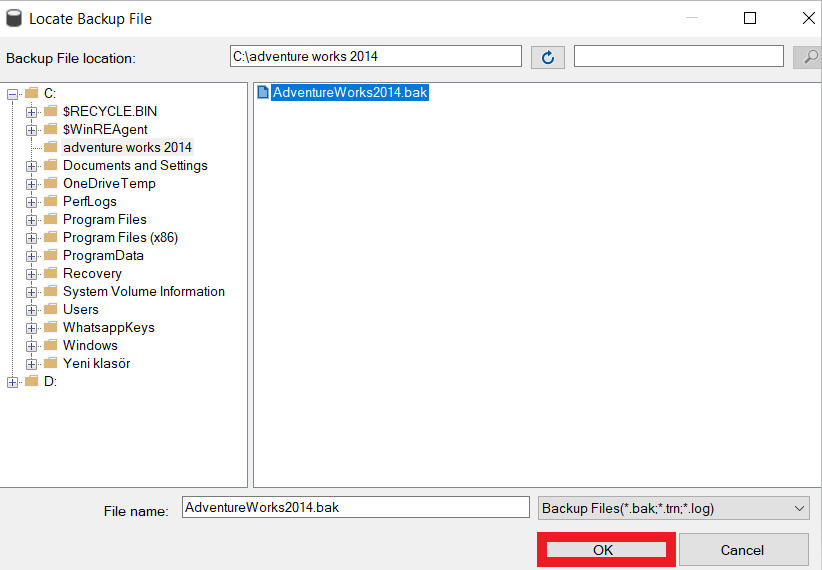
3. Add the backup file. In the Select backup devices window, click Add.

4. Pick the file. Browse to the folder that contains the .bak file, select it and click OK. This browser only shows folders the SQL Server service account can access, so if you can’t see your file, folder permissions are the most likely cause.

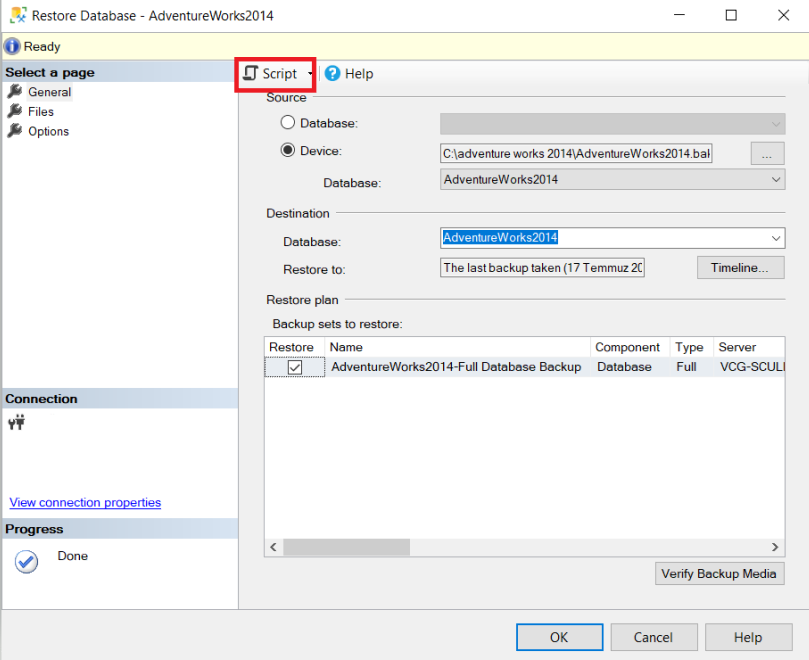
5. Review the restore plan and script it. SSMS lists the backups it will restore in the Backup sets to restore grid. Before you run it, check the Files page to see where the files will be written, and these settings on the Options page:
- Overwrite the existing database (WITH REPLACE): overwrites an existing database. Ticking this on the wrong database can’t be undone.
- Recovery state: choose RESTORE WITH NORECOVERY if you will apply more log backups afterwards.
- Take tail-log backup before restore: preserves the latest transactions of the existing database that haven’t been backed up yet (see below).
- Close existing connections: closes open connections to get the exclusive access a restore needs.
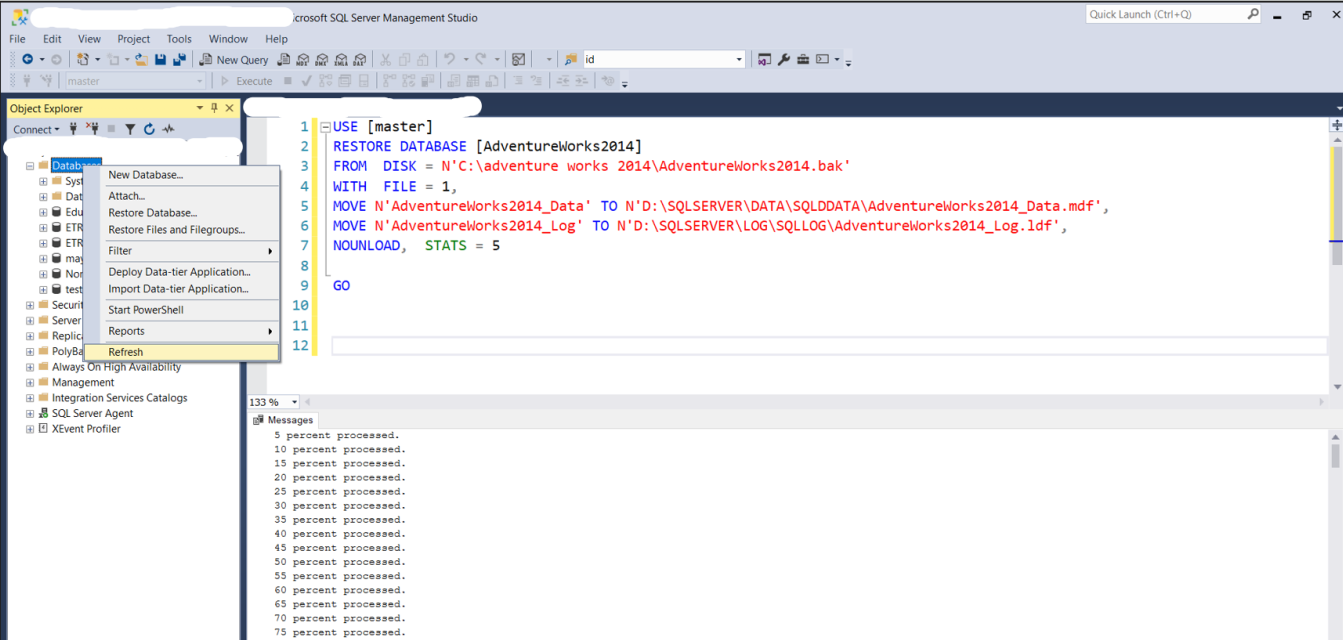
Instead of clicking OK, we recommend clicking Script at the top to open the T-SQL that SSMS would run in a new query window. You can then read exactly what will happen, keep it, and reuse it the next time you need the same restore.

How to Restore a SQL Server Database with T-SQL
In production, restoring with T-SQL is safer: the command is repeatable, reviewable, and can be written into a runbook.
Restore from a single full backup
When restoring to a different server or different folders, use MOVE to give each logical file its new physical path:
USE [master];
RESTORE DATABASE [AdventureWorks2014]
FROM DISK = N'C:\Backup\AdventureWorks2014.bak'
WITH FILE = 1,
MOVE N'AdventureWorks2014_Data' TO N'D:\SQLData\AdventureWorks2014_Data.mdf',
MOVE N'AdventureWorks2014_Log' TO N'L:\SQLLog\AdventureWorks2014_Log.ldf',
RECOVERY,
STATS = 5;
STATS = 5 reports progress every 5%. To restore under a different name (for example AdventureWorks2014_Test), change the name after RESTORE DATABASE and give the files new names with MOVE. Otherwise SQL Server tries to overwrite the original database’s files.
Full + differential + log restore sequence
In a real recovery you usually restore a whole sequence. Every step except the last runs with NORECOVERY:
-- 1) Full backup
RESTORE DATABASE [SalesDB]
FROM DISK = N'E:\Backup\SalesDB_FULL_20261005.bak'
WITH NORECOVERY, STATS = 10;
-- 2) Most recent differential backup
RESTORE DATABASE [SalesDB]
FROM DISK = N'E:\Backup\SalesDB_DIFF_20261006_0600.bak'
WITH NORECOVERY, STATS = 10;
-- 3) Every log backup taken after the differential, in order
RESTORE LOG [SalesDB] FROM DISK = N'E:\Backup\SalesDB_LOG_20261006_0615.trn' WITH NORECOVERY;
RESTORE LOG [SalesDB] FROM DISK = N'E:\Backup\SalesDB_LOG_20261006_0630.trn' WITH NORECOVERY;
-- 4) Bring the database online
RESTORE DATABASE [SalesDB] WITH RECOVERY;
Point-in-time restore: going back to a specific moment
If someone ran an unfiltered DELETE at 10:42, you can bring the database back to 10:41 by applying the log backups with STOPAT. As Microsoft recommends, specify the same STOPAT value on every RESTORE LOG statement in the sequence:
RESTORE DATABASE [SalesDB_Recovery]
FROM DISK = N'E:\Backup\SalesDB_FULL_20261005.bak'
WITH NORECOVERY,
MOVE N'SalesDB' TO N'D:\SQLData\SalesDB_Recovery.mdf',
MOVE N'SalesDB_log' TO N'L:\SQLLog\SalesDB_Recovery_log.ldf';
RESTORE LOG [SalesDB_Recovery]
FROM DISK = N'E:\Backup\SalesDB_LOG_20261006_1030.trn'
WITH NORECOVERY, STOPAT = N'2026-10-06T10:41:00';
RESTORE LOG [SalesDB_Recovery]
FROM DISK = N'E:\Backup\SalesDB_LOG_20261006_1045.trn'
WITH NORECOVERY, STOPAT = N'2026-10-06T10:41:00';
RESTORE DATABASE [SalesDB_Recovery] WITH RECOVERY;
Tip
Note that this example restores side by side under a new name instead of over the original. For most user-error scenarios that is the right approach: you copy only the affected rows from the restored copy back into production, and every legitimate change made after the mistake is preserved. We describe a real case in our success story Recovering from an Accidental SQL Server Restore with a 1-Minute RPO.
Tail-log backup: don’t lose the latest transactions
Warning
If you are restoring over an existing database to its most recent state, first back up the transactions made since the last log backup that haven’t been backed up yet, the tail of the log. Otherwise they are lost, and SQL Server stops you with error 3159:
-- Database is online: back up the tail and leave the database in RESTORING state
BACKUP LOG [SalesDB]
TO DISK = N'E:\Backup\SalesDB_TAIL.trn'
WITH NORECOVERY;
-- Database is offline, won't start, or is damaged
BACKUP LOG [SalesDB]
TO DISK = N'E:\Backup\SalesDB_TAIL.trn'
WITH NO_TRUNCATE, CONTINUE_AFTER_ERROR;
The tail-log backup becomes the last log backup you apply in the sequence. You don’t need one if you are only moving the database, or deliberately overwriting it and don’t need anything after its most recent backup.
Getting exclusive access to an existing database
A restore needs exclusive access to the database, so if applications are connected you get error 3101. Disconnect them and run the restore immediately afterwards in the same session, otherwise another connection may grab the database in between:
USE [master];
ALTER DATABASE [SalesDB] SET SINGLE_USER WITH ROLLBACK IMMEDIATE;
RESTORE DATABASE [SalesDB]
FROM DISK = N'E:\Backup\SalesDB_FULL_20261005.bak'
WITH REPLACE, RECOVERY, STATS = 10;
ALTER DATABASE [SalesDB] SET MULTI_USER;
WITH REPLACE disables the safety checks that stop you from overwriting the wrong database. Only use it when you are certain the target is correct.
Common SQL Server Restore Errors
When a restore fails, SQL Server usually returns two messages: the error that explains the real cause, followed by the generic “Msg 3013: RESTORE DATABASE is terminating abnormally”. Error 3013 on its own tells you nothing, so always read the message before it.
| Error | What it means | How to fix it |
|---|---|---|
| 3154 | The backup set belongs to a different database than the existing target. | Restore under a different name, or use WITH REPLACE if you are sure the target is correct. |
| 3159 | The tail of the log for the target database hasn’t been backed up. | Take a tail-log backup first. If you don’t need the latest transactions, use WITH REPLACE. |
| 3101 | Exclusive access couldn’t be obtained because the database is in use. | Disconnect users with SET SINGLE_USER WITH ROLLBACK IMMEDIATE, and close your own query windows in SSMS too. |
| 3201 | The backup device (file) can’t be opened. | Check the path, and make sure the SQL Server service account (not your own login) can read the file. Use a UNC path for network shares. |
| 5133 / 3156 | A file can’t be created at the original path stored in the backup, because the folder doesn’t exist on this server. | Get the logical names with RESTORE FILELISTONLY and provide new paths with WITH MOVE. |
| 3169 | The backup was taken on a newer version of SQL Server. | There is no downgrade restore in SQL Server. Upgrade the target, or move the data with scripts or data transfer tools. |
| 4305 | The log backup is too recent to apply, because a log backup in between is missing. | The log chain is broken. Find the missing file; the FirstLSN and LastLSN values from RESTORE HEADERONLY show the correct order. |
| 3241 | The backup file can’t be read (“media family incorrectly formed”). | The file was usually copied incompletely or is damaged. Compare it with the source and run RESTORE VERIFYONLY. |
Post-Restore Checklist
A RESTORE statement that completes successfully isn’t the end of the job. After a restore, and especially after restoring to a different server, check the following:
- Integrity: run
DBCC CHECKDBon the restored database. A backup can faithfully contain a corrupt page. See the importance of DBCC CHECKDB for details. - Orphaned users: logins live in
master, not in the database. If the new server has no login with the same SID, database users are orphaned and the application can’t connect. - Database owner: a database restored to a new server is usually owned by the login that ran the restore. Set it back to your standard owner with
ALTER AUTHORIZATION. - TRUSTWORTHY: as Microsoft documents, this property is always set to
OFFafter a restore or attach. If the application needs it, turn it back on deliberately. - Compatibility level: a database restored to a newer version keeps its old compatibility level. That should be a conscious choice, so test before changing it.
- Objects outside the database: SQL Server Agent jobs, linked servers, logins and certificates are not in the backup and must be moved separately. If TDE is used, the certificate must exist on the target before the restore.
USE [SalesDB];
-- Users with no matching login on this server
SELECT dp.name AS user_name, dp.type_desc, dp.authentication_type_desc
FROM sys.database_principals AS dp
LEFT JOIN sys.server_principals AS sp ON dp.sid = sp.sid
WHERE sp.sid IS NULL
AND dp.authentication_type_desc IN (N'INSTANCE', N'WINDOWS')
AND dp.principal_id > 4;
-- Re-map a user to the login with the same name
ALTER USER [app_user] WITH LOGIN = [app_user];
-- Give the database back to the standard owner
ALTER AUTHORIZATION ON DATABASE::[SalesDB] TO [sa];
How to Make Restores Faster
For a large database, restore time is your real RTO (recovery time objective). The factors with the most impact are:
- Instant file initialization: when the SQL Server service account has the Perform volume maintenance tasks right, data files are created without being zeroed out first. On large databases this saves minutes or even hours. Check the
instant_file_initialization_enabledcolumn insys.dm_server_services. - Transaction log size: log files don’t benefit from instant file initialization and are zeroed during the restore. An oversized log file directly adds to restore time. We cover this in Is Your SQL Server Database Transaction Log Too Big?
- Backup compression and multiple files: compressed backups mean less data to read, and striping a backup across several files lets SQL Server read them in parallel from different disks.
- Source location: restoring from a slow network share often takes longer than copying the file to local disk first and restoring from there.
You can follow the progress of a long restore from another session:
SELECT session_id,
command,
percent_complete,
estimated_completion_time / 60000 AS est_minutes_left
FROM sys.dm_exec_requests
WHERE command LIKE N'RESTORE%';
Restore Testing: The Real Test of a Backup
A backup that has never been restored is only a hope. We recommend making restore testing routine:
- Restore critical databases to a non-production server at least monthly, then run
DBCC CHECKDB. - Measure and record how long the restore takes. That measurement, not the RTO on paper, is your real recovery time.
- Restore the log chain during the test too. Testing only the full backup won’t reveal problems with the log backups.
- Track past restores in
msdb:
SELECT TOP (20)
rh.destination_database_name,
rh.restore_date,
rh.restore_type, -- D = database, I = differential, L = log
rh.user_name,
bs.backup_finish_date,
bmf.physical_device_name
FROM msdb.dbo.restorehistory AS rh
JOIN msdb.dbo.backupset AS bs ON rh.backup_set_id = bs.backup_set_id
JOIN msdb.dbo.backupmediafamily AS bmf ON bs.media_set_id = bmf.media_set_id
ORDER BY rh.restore_date DESC;
When you design your backup strategy, our guides on how to set up the best backup plan and SQL Server backup safety best practices are a good next step. If something goes wrong during a restore, the first place to look is the SQL Server error log.
Frequently Asked Questions
master database, not in the user database’s backup. After restoring to another server you need to create the logins separately and re-map orphaned users with ALTER USER ... WITH LOGIN.percent_complete column in sys.dm_exec_requests.ALTER DATABASE ... SET SINGLE_USER WITH ROLLBACK IMMEDIATE and run the restore immediately afterwards in the same session, or use the “Close existing connections” option in SSMS.Related Reading
SQL Server Backup Consulting
Can Your Backups Actually Be Restored?
Aryasoft designs backup and restore strategies around your RPO/RTO targets, proves your existing backups with regular restore tests, and provides senior DBA support when an emergency recovery can’t wait.