TABLE OF CONTENTS
When SQL Server starts, it learns where the master database is, where to write the error log and which trace flags to start with from its startup parameters. Setup writes them with default values, and usually nobody looks at them again, until you need to move the master database, get into a server where every sysadmin account has lost access, or bring up an instance that won’t start because of a bad configuration.
This guide explains what startup parameters are, how to view and change them, and how to use them in critical situations.
Won't SQL Server start?
Aryasoft's emergency team safely resolves instances that won't start, servers with lost access and startup errors.
The Default Parameters
Every instance starts with three required parameters:
| Parameter | Meaning |
|---|---|
| -d | Full path of the master database data file (master.mdf) |
| -l | Full path of the master database log file (mastlog.ldf) |
| -e | Full path of the error log file |
Commonly used optional parameters:
| Parameter | Meaning |
|---|---|
| -T#### | Starts the instance with the given trace flag on (for example -T3226) |
| -m | Single-user mode; -m”SQLCMD” lets only the named application connect |
| -f | Starts with a minimal configuration (also implies single-user mode) |
| -c | Faster startup when started from the command line rather than as a service |
| -x | Disables some monitoring features (CPU time and cache statistics) |
Viewing and Changing Them
You can see the current parameters with T-SQL:
SELECT value_name, value_data
FROM sys.dm_server_registry
WHERE value_name LIKE N'SQLArg%';
To change them, in SQL Server Configuration Manager, right-click the SQL Server service under SQL Server Services and open Properties:
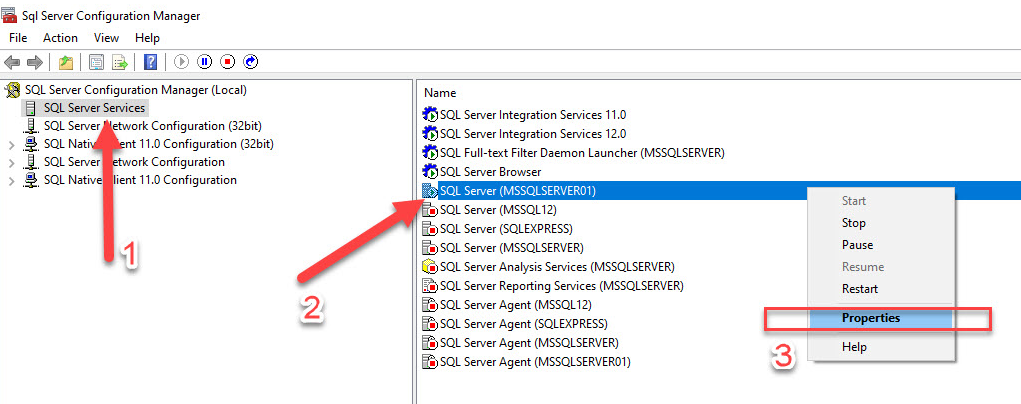
On the Startup Parameters tab, type the new parameter and click Add, or select an existing parameter and remove it:
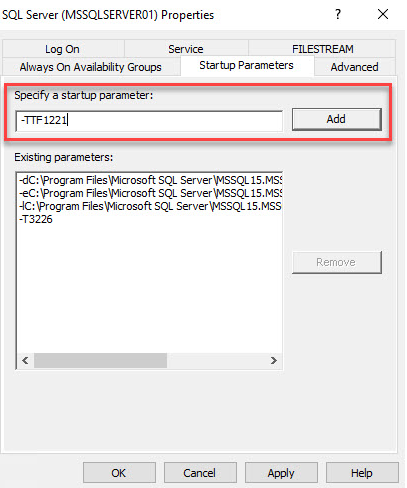
The change takes effect when the service restarts. In a failover cluster or Always On environment, set the parameter on each node separately.
Warning
A typo in the -d, -l or -e parameters stops SQL Server from starting at all. Record the current values before making a change, and copy and paste the paths. If the service won’t start, the Windows Application log and the specified error log file show why.
Use Cases
Making trace flags permanent
A trace flag enabled with DBCC TRACEON (3226, -1) is lost when the service restarts. Flags that must persist are added as startup parameters with -T. Our trace flag guide covers which trace flags are really needed.
When all sysadmin access is lost
If every sysadmin account has been deleted or locked, or its password forgotten, a local Windows administrator on the server can connect in single-user mode and grant themselves access again:
# Stop the service and start it in single-user mode, allowing only sqlcmd to connect
net stop MSSQLSERVER
net start MSSQLSERVER /m"SQLCMD"

# Connect as a local administrator and make an AD group sysadmin
sqlcmd -S . -E -Q "CREATE LOGIN [DOMAIN\DBA-Team] FROM WINDOWS; ALTER SERVER ROLE sysadmin ADD MEMBER [DOMAIN\DBA-Team];"

# Restart in normal mode
net stop MSSQLSERVER
net start MSSQLSERVER
Note
Single-user mode accepts only one connection. With plain -m, applications, SQL Server Agent or SSMS Object Explorer can grab that single connection before you do. Allowing only sqlcmd with -m”SQLCMD” avoids the race. For named instances, the service name is MSSQL$InstanceName.
An instance that won’t start because of a bad configuration
For example, if max server memory was set far too low and the instance doesn’t run properly because of it, you can start with a minimal configuration using -f and fix the setting. -f also implies single-user mode; after the fix, remove the parameter and start normally.
Moving the master database
To move the master files to another disk, stop the service, copy the files, update the -d and -l parameters to the new paths and start the service. The other system databases (model, msdb, tempdb) are moved with ALTER DATABASE ... MODIFY FILE. For the roles of the system databases, see our system databases guide.
Checklist
- The current startup parameters are documented.
- Permanent trace flags are defined with -T, with their reasons documented.
- Parameters are consistent across cluster and Always On nodes.
- The procedure for connecting in single-user mode is ready in the runbook.
- sysadmin access is granted to an AD group, not to individuals.
Related Reading
SQL Server Emergency Support
Don’t face a server that won’t start alone
Aryasoft’s senior DBA team resolves startup errors, lost access and broken configurations with controlled steps, and brings the server back without risking data loss.