
Best Practices for Disk Storage in SQL Server
Disk is usually the slowest part of computer technology.
Properly configured storage systems are critical for SQL Server to perform optimally and run smoothly.
Below are some of the most common storage best practices Microsoft recommends for improving SQL Server’s performance, reliability, and security.
Disk Hardware
Over the last 50 years, Hard Disk Drives (HDDs) have made steady improvements in reliability, capacity, and speed.
Solid-State Drives (SSDs) are faster than HDDs and use less power.
Over the last decade, they’ve become available at capacities and prices suitable for server use.
To improve SSD reliability, use enterprise-grade drives, which deliver significantly better I/O performance and are far less prone to failure.
File System
SQL Server performs most of its I/O in 8K or 64KB chunks, and it performs best when the storage where the DB files live is formatted using a 64KB allocation unit (system cluster) size.
You can check the disk cluster size by running the following code at an elevated command prompt. Just change the “E” letter to your drive.
fsutil fsinfo ntfsinfo E:
It’s not easy to fix after the fact, but if you can get a maintenance window, it’s worth making the change.
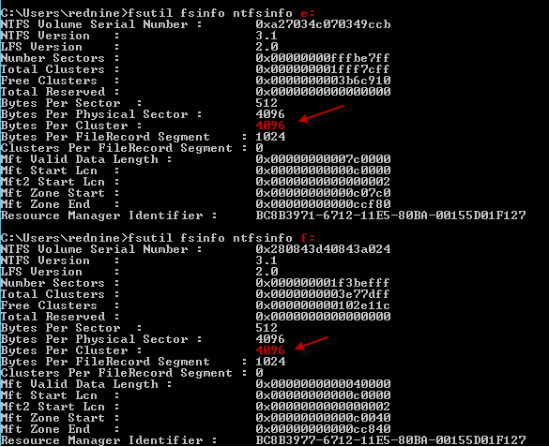
A simple way to do this is to add a new drive, format it correctly, move the SQL files to it, delete the old drive, switch to the new drive, and so on.
If you’re using a SAN, you should also look at alignment relative to LUN partitions. When a virtual machine is involved, take the file system layer into account as well.
Data Storage
Separate your Data (MDF), Log (LDF), and tempdb files onto different physical drives.
Make sure they’re completely separate from the “C:” operating system drive, even if it’s on another partition of the same hardware.
Also, never share the same disk between backups and live databases. If that disk fails, you’ll lose both the databases and the backups.
Data files and tempdb typically see more random access than log files, though this depends on the workload. Because of that, use RAID 1+0 where possible to improve write performance.
Need expert support for SQL Server?
Our senior database team supports SQL Server performance tuning, health checks, migrations, Remote DBA services and urgent operational issues.
Filegroups and Data Files
For starters, you want to have multiple filegroups, each containing multiple files.
Ideally, all of these files sit on separate drives. This makes reading and writing data and indexes faster, since read/write operations can now be multi-threaded and multiple physical disks can “help out.”
If some data is old and doesn’t change much (for example, historical data), that data can be placed in a separate filegroup, backed up just once, and then set to read-only.
From that point on, you only need to back up the most recent data. That reduces the time needed for backups, backup sizes, restore times, and so on.
This strategy also lets you move older data onto slower/cheaper storage.
In a disaster scenario, you want to keep the amount of data in the PRIMARY filegroup as small as possible, since you can’t bring the DB online until it’s been recovered.
That’s why it’s a good idea to keep PRIMARY as small as possible.
This way, during a disaster, you can bring PRIMARY — and that period’s data — online, and at that point your database is live. In the background, we can be restoring the older data without DB availability or users even being aware of it.
This also makes restoring to lower environments like DEV, QA, and UAT smaller and faster, because you no longer need to restore all the data.
Other Considerations
- Review the database’s autogrowth settings and the internal fragmentation of the transaction log (VLFs).
- Consider enabling Instant File Initialization and trace flags to control certain behaviors in SQL Server.
Related Reading
SQL Server Performance Consulting
Are You Confident in Your SQL Server Performance?
Aryasoft runs an end-to-end analysis of your query performance, indexing, memory, and disk configuration, and delivers concrete steps for improvement.