Choosing to disable Windows automatic updates on a SQL Server box isn’t about skipping patches — it’s about controlling exactly when they install, so a surprise reboot never coincides with your busiest hours.
Disable Windows Automatic Updates
Category: Reliability
Why should you care?
If Windows updates aren’t managed by your organization’s policies, they’re likely set to a less-than-optimal configuration.
Updates can start downloading at unpredictable times and cause performance problems that are difficult to track down.
How do I check?
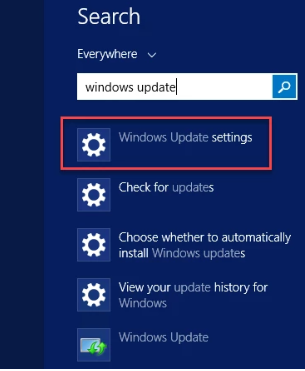
- Go to Start and search for “Windows Update settings”:
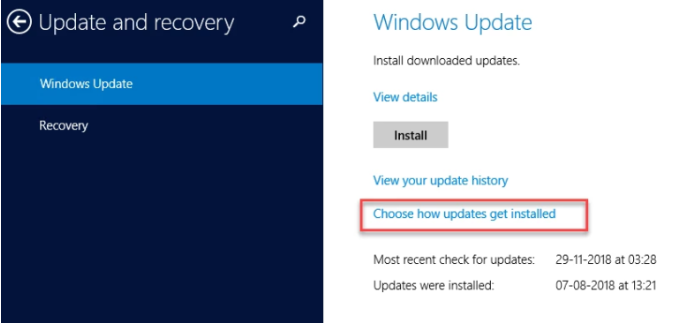
- Go to “Choose how updates are installed”:
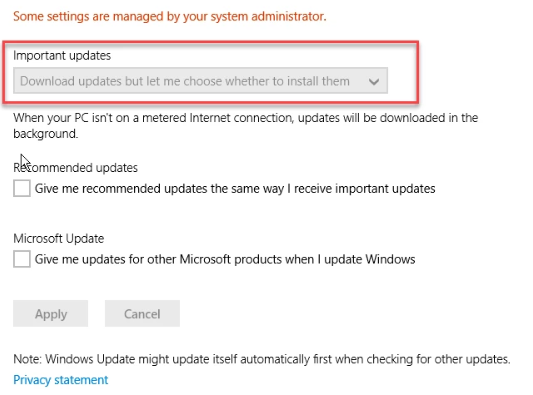
- Check whether “Never check for updates (not recommended)” is selected.
Need expert support for SQL Server?
Our senior database team supports SQL Server performance tuning, health checks, migrations, Remote DBA services and urgent operational issues.
How do we fix it?
- Change it to “Never check for updates (not recommended).”
- Then run Windows Update on a regular schedule during a maintenance window and reboot afterward. The best-run environments do this on a planned monthly basis.
Related Reading
SQL Server Server Management
Have You Correctly Configured Your SQL Server Environment’s OS Settings?
Aryasoft reviews your SQL Server environment’s operating-system-level configuration, from update policies to power plan settings.