TABLE OF CONTENTS
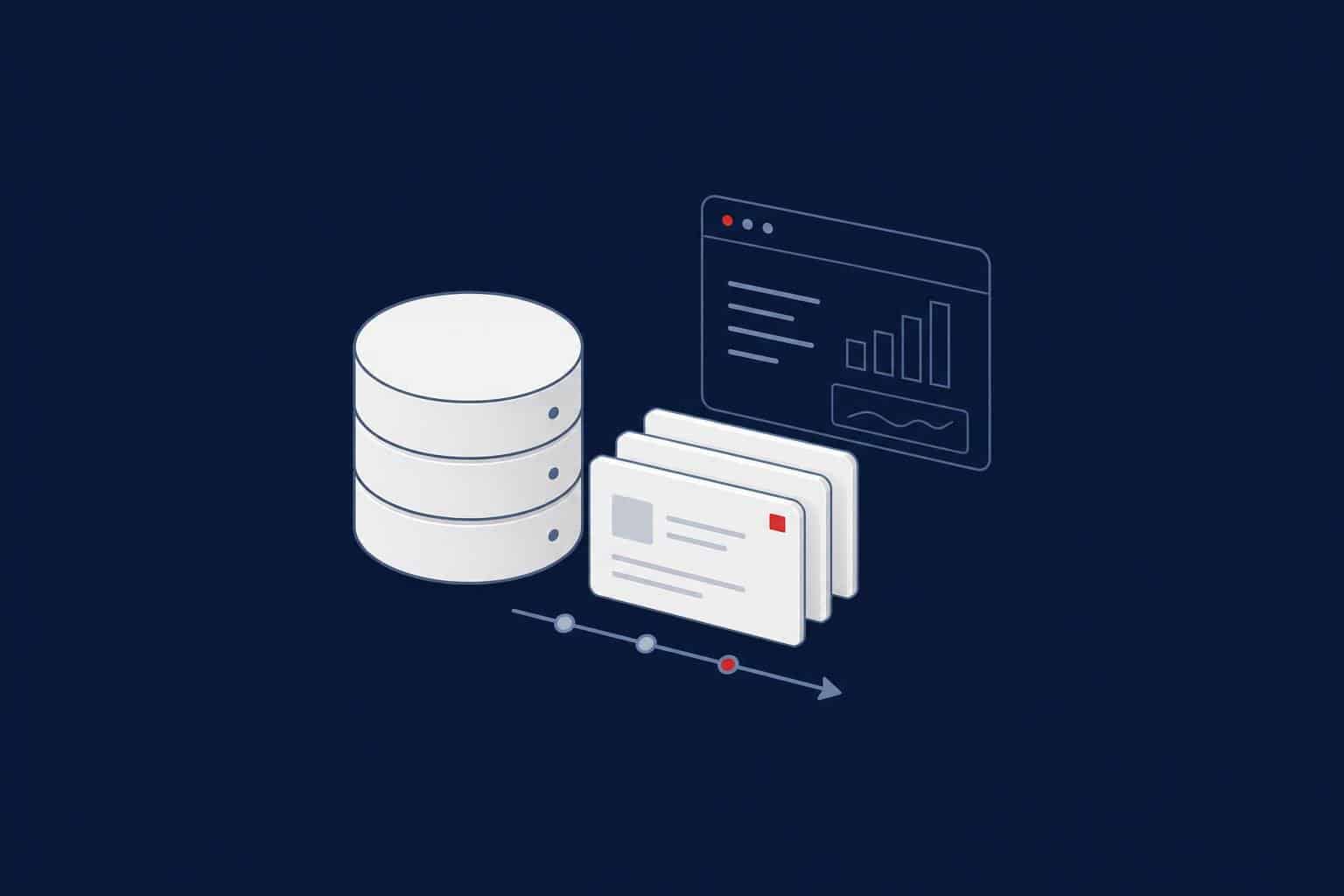
“This query was fast yesterday, why is it slow today?” is one of the most common questions in SQL Server, and one of the hardest to answer from the plan cache. The plan cache only holds the current plan; when the service restarts, under memory pressure or when statistics update, the history is gone. Query Store keeps queries, their plans and runtime statistics over time, inside the database itself. You can see when a plan changed and how long the query took before and after, and force the old plan if needed.
This guide covers how to enable Query Store, which settings to use in production, how to find and fix plan regressions, and common problems.
Why did your queries suddenly slow down?
Aryasoft finds plan regressions with Query Store and wait statistics, fixes the root cause and makes performance stable.
What Query Store Keeps
- The query text and every plan produced for each query.
- Runtime statistics per plan, split into time intervals: duration, CPU, reads, writes, memory, row counts.
- Per-query wait statistics in SQL Server 2017 and later.
The data lives inside the database; it moves with the backup and survives a service restart. Query Store arrived in SQL Server 2016; in SQL Server 2022 it’s on by default for newly created databases. On older versions or upgraded databases it may be off.
Is Query Store On?
SELECT DB_NAME() AS database_name,
       actual_state_desc, desired_state_desc, readonly_reason,
       current_storage_size_mb, max_storage_size_mb,
       query_capture_mode_desc, stale_query_threshold_days
FROM sys.database_query_store_options;
If actual_state_desc differs from desired_state_desc (for example READ_WRITE was requested but it dropped to READ_ONLY), Query Store has stopped collecting data. The most common reason is running out of the allocated space; readonly_reason shows why.
Recommended Production Settings
ALTER DATABASE SalesDB SET QUERY_STORE = ON
(
    OPERATION_MODE = READ_WRITE,
    QUERY_CAPTURE_MODE = AUTO,              -- skips infrequent, insignificant queries
    MAX_STORAGE_SIZE_MB = 2048,
    SIZE_BASED_CLEANUP_MODE = AUTO,          -- cleans old data before space runs out
    CLEANUP_POLICY = (STALE_QUERY_THRESHOLD_DAYS = 30),
    INTERVAL_LENGTH_MINUTES = 60,
    WAIT_STATS_CAPTURE_MODE = ON
);- QUERY_CAPTURE_MODE = AUTO: the default from SQL Server 2019. ALL mode fills Query Store quickly on systems with lots of ad hoc queries.
- MAX_STORAGE_SIZE_MB: the default of 1 GB is enough for most databases; raise it on systems that run many distinct queries, and watch growth. Very large values can slow down Query Store reports and cleanup.
- SIZE_BASED_CLEANUP_MODE = AUTO: removes the oldest and least important data as space approaches the limit, preventing the drop to READ_ONLY.
Warning
If nobody notices that Query Store dropped to READ_ONLY, months can pass without any data being collected, and it turns out empty exactly when you need it. Add sys.database_query_store_options to your monitoring routine and alert when actual_state_desc and desired_state_desc differ.
Finding a Plan Regression
In SSMS, the Query Store folder under a database holds built-in reports. The most useful are Regressed Queries and Top Resource Consuming Queries. You can get the same information in T-SQL; the query below lists the queries that used the most CPU in the last 24 hours and how many different plans they used:
SELECT TOP (20)
       q.query_id,
       COUNT(DISTINCT p.plan_id)                             AS plan_count,
       SUM(rs.count_executions)                              AS executions,
       SUM(rs.avg_cpu_time * rs.count_executions) / 1000     AS total_cpu_ms,
       SUM(rs.avg_duration * rs.count_executions)
         / NULLIF(SUM(rs.count_executions), 0) / 1000        AS avg_duration_ms,
       MAX(SUBSTRING(qt.query_sql_text, 1, 200))             AS query_text
FROM sys.query_store_query AS q
JOIN sys.query_store_query_text AS qt ON qt.query_text_id = q.query_text_id
JOIN sys.query_store_plan AS p ON p.query_id = q.query_id
JOIN sys.query_store_runtime_stats AS rs ON rs.plan_id = p.plan_id
JOIN sys.query_store_runtime_stats_interval AS i
     ON i.runtime_stats_interval_id = rs.runtime_stats_interval_id
WHERE i.start_time > DATEADD(HOUR, -24, SYSUTCDATETIME())
GROUP BY q.query_id
ORDER BY total_cpu_ms DESC;
If plan_count is above 1 and the query’s duration went up after a certain date, a plan change has most likely happened.
Forcing the Good Plan
If the old plan is clearly better, forcing it can fix the problem within minutes:
EXEC sys.sp_query_store_force_plan @query_id = 42, @plan_id = 17;

-- Forced plans and failed forcing attempts
SELECT plan_id, query_id, is_forced_plan, force_failure_count, last_force_failure_reason_desc
FROM sys.query_store_plan
WHERE is_forced_plan = 1;
Forcing a plan is a bandage, not a permanent fix. Investigate why the plan changed (statistics, parameter sensitivity, a missing index, data distribution). If an index used by the forced plan is dropped, forcing fails; force_failure_count shows it.
Tip
Query Store hints, introduced in SQL Server 2022, let you add hints such as MAXDOP, RECOMPILE or a compatibility level to a query without changing application code: EXEC sys.sp_query_store_set_hints @query_id = 42, @query_hints = N’OPTION (MAXDOP 1)’. They’re especially valuable for third-party applications whose code you can’t change.
During Upgrades and Compatibility Level Changes
One of Query Store’s most valuable uses is version migrations. The recommended order: after the upgrade, keep the database at its old compatibility level, let Query Store collect a baseline for a while, then raise the compatibility level and catch regressing queries with the Regressed Queries report. Details are in our compatibility level guide.
Always On and Query Store
Before SQL Server 2025, Query Store only records the workload on the primary replica; the history of reporting queries running on readable secondaries isn’t kept. With SQL Server 2025, Query Store became available for secondary replicas too.
Query Store Checklist
- Query Store is READ_WRITE in every user database.
- Capture mode is AUTO, and size and cleanup settings are configured.
- actual_state_desc is monitored; dropping to READ_ONLY raises an alert.
- Forced plans are documented and their root causes investigated.
- A baseline is collected before compatibility level changes.
Related Reading
SQL Server Performance Consulting
Find performance regressions in minutes
Aryasoft’s senior DBA team configures Query Store properly, spots plan regressions fast, forces the good plan when needed and fixes the root cause for good.