
SQL SERVER – FIX: Error 5161 – An Unexpected file id was Encountered
We were planning to run a demo on increasing the number of tempdb files and the performance benefit that comes with it. We prepped this in our test environments. We ran the script and restarted the SQL Server service, but the SQL service wouldn’t start.
We checked the ERRORLOG (and we’d recommend checking this log whenever you run into any SQL startup issue) and found the following errors right before the SQL shutdown messages.
2022-12-02 17:03:24.42 spid18s Error: 5161, Severity: 16, State: 1.
2022-12-02 17:03:24.42 spid18s An unexpected file id was encountered.
File id 3 was expected but 4 was read from D:TempDBtempdev3.ndf. Verify that files are mapped correctly in sys.master_files.
2014-12-02 17:03:24.42 spid18s Could not create tempdb. You may not have enough disk space available. Free additional disk space by deleting other files on the tempdb drive and then restart SQL Server. Check for additional errors in the event log that may indicate why the tempdb files could not be initialized.
We understood the problem, but SQL wouldn’t start now — how do we fix it? The easiest option is to remove the file and re-add it under the correct name.
1. Start SQL Server with Trace Flag 3608
We can use the following command from the command prompt.
net start mssqlserver /T3608We had a default instance on our machine, so we used MSSQLServer.
For a named instance, we’d need to use MSSQL$<InstanceName>.
2. Run the ALTER DATABASE Command
Run the ALTER DATABASE command as shown below to remove the unwanted file. We connected with SQLCMD and removed tempdev2, since its file existed as tempdev3. This can also be done from Management Studio.
Need expert support for SQL Server?
Our senior database team supports SQL Server performance tuning, health checks, migrations, Remote DBA services and urgent operational issues.

We can also run the following query to find the current mapping. Database ID = 2 is always the tempDB database.
SELECT name, physical_name FROM sys.master_files WHERE database_id = 23. Start SQL Server Normally
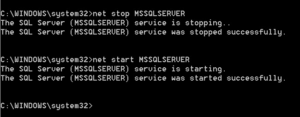
After completing the steps above, we should be able to connect to SQL and, this time, make changes to TempDB correctly.
Have you run into similar tempdb errors before? How did you fix them?
Related Reading
SQL Server Consulting
Do You Need Expert Support for Your SQL Server Environment?
Aryasoft’s senior database team provides end-to-end consulting, from SQL Server performance tuning to architecture decisions.