Setting up the right SQL Server backup plan is the single most important safeguard against data loss. The SQL Server backup and restore component provides essential protection for the critical data stored in your SQL Server databases. Because SQL Server is a database management system (DBMS), a single SQL Server instance can host multiple databases. These databases hold data that matters to the business, and losing that data can be catastrophic. That’s why backing up the databases on SQL Server is so important. To minimize the risk of destructive data loss, you need to back up your databases regularly to protect the changes made to your data.
A well-planned backup and restore strategy helps protect databases against data loss caused by a wide range of failures.
Building Your SQL Server Backup Plan
A database backup is a copy of all or part of a database’s data, stored on separate media. This backup copy can be used to restore the original database if data loss occurs.
The backup process can take a long time depending on the size of the database and the backup method used. Because backing up the database is a critical operation, the backup frequency and method should be well planned, and a storage location for the backup copies should be defined.
How do you set up the best backup plan?
For us, the best maintenance plan is one that takes backups in a way the organization can actually support. Does the organization have enough disk space for it? What does the database architecture look like? Is there an AlwaysOn setup? Is there a third storage location for backups? Is there an environment to test recovery scenarios? It’s healthiest to set this up by questioning the environment’s actual requirements against questions like these.
The best backup plan varies depending on the needs of the organization it’s being set up for and how critical that organization’s data is. That said, in general, the best backup plan should have the following characteristics:
1. Frequent, regular backups: Depending on how important your data is, backups should be taken frequently and regularly. This minimizes the data lost in the event of data loss. For example, there’s a big difference between taking a log backup every 15 minutes versus every 4 hours. With any outage or disaster, data loss of up to 4 hours is unavoidable under that second setup.
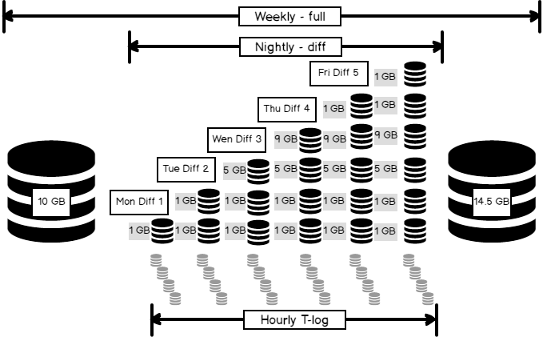
2. Multiple backup types: The best backup plan should include different backup types, such as full, differential, and log backups. This ensures backup operations are performed quickly and effectively.
For us, the ideal scenario (and what we’d recommend) is a weekly full backup, a daily differential backup, and a log backup every 15 minutes.
Of course, depending on how critical the organization’s data is, full backups can also be taken daily rather than weekly to minimize data loss. For example, these backup plans can vary depending on I/O intensity. Instead of one weekly full backup and one daily diff backup, a scenario of one full backup per day and two diff backups per day can be built to recover from a potential disaster without a system outage, minimize the risk of destructive data loss, and regularly protect the changes made to your data.
In AlwaysOn environments, if we choose to prioritize taking backups on the secondary rather than the primary, the load on the primary is reduced, which prevents performance loss and helps maintain business continuity.
3. Secure storage: You need to store your backups securely. Backup storage should include encrypting the backed-up data to keep it safe.
Another important point: when taking backups in an AlwaysOn environment, having a third storage location besides the existing machine’s disk is valuable so that you can restore quickly and reliably if the primary machine is lost to a disaster. This prevents loss of time and continuity in a potential recovery scenario.
4. Verification and testing: The best backup plan regularly tests the accuracy and integrity of the backed-up data. It’s important to keep output parameters and build out a recovery scenario. This way, you can be confident the backup operations actually succeeded.
5. Backup retention period: A retention period for backups ensures old backups are regularly deleted and storage isn’t filled unnecessarily. Depending on the organization’s needs, retention can be one week or a month. What matters, as mentioned, is not overfilling disk space — this way you avoid losing speed and performance.
Because the size of your backups will grow over time and fill up disk space, keeping backups with “compressed backup” is more advantageous both in terms of backup cost and taking backups faster. (We covered compress backup in another article — you can read more about backup compression on our SQL Server services page.)
6. Automating backup operations: The best backup plan includes automating backup operations. This prevents backups from being skipped due to human error or forgetfulness.
7. A reliable backup restore process: The right backup strategy can help make the restore process faster and smoother. You can also use the parameters from prior testing to estimate how long a restore will take, which helps with business continuity planning.
Setting up a backup plan with the characteristics above helps ensure the security and integrity of your data. That said, depending on factors like the importance and volatility of your data, it’s important to regularly review your backup plan and update it as needed.
Finally, here’s a script you can use to regularly check your backups.
SELECT
s.database_name,
s.backup_start_date,
CASE s.[type]
WHEN 'D' THEN 'Full'
WHEN 'I' THEN 'Differential'
WHEN 'L' THEN 'Transaction Log'
END AS BackupType,
s.server_name
FROM
msdb.dbo.backupset s
INNER JOIN msdb.dbo.backupmediafamily m ON s.media_set_id = m.media_set_id
WHERE
s.backup_start_date > DATEADD(dd, -7, GETDATE())
and (s.type='D' OR s.type='I' OR s.type='L')
ORDER BY
backup_start_date DESC,
backup_finish_date ASC
GONeed expert support for SQL Server?
Our senior database team supports SQL Server performance tuning, health checks, migrations, Remote DBA services and urgent operational issues.
Related Reading
SQL Server Backup Consulting
Does Your Backup Policy Meet Your Data Loss Risk?
Aryasoft builds a backup strategy aligned with your RPO/RTO targets, audits your existing backup policy, and plans recovery testing.