TABLE OF CONTENTS
- •Is SQL Server's memory being paged to disk?
- •What Lock Pages in Memory Does
- •When Should You Enable It?
- •The Warning Sign: Error 17890
- •Always Set max server memory First
- •How to Enable Lock Pages in Memory
- •1. Find the SQL Server service account
- •2. Grant the right
- •3. Restart the SQL Server service
- •Check the right from the command line
- •How to Verify It’s in Use
- •Large Pages and Trace Flag 834
- •Lock Pages in Memory on Virtual Machines
- •How to Disable It
- •Lock Pages in Memory Checklist
- •Keep SQL Server’s memory where it belongs
Windows manages memory for every process on a server. When it runs short, it can trim a process’s working set and move part of its memory to the page file. For most applications that’s harmless. For SQL Server, whose buffer pool exists precisely to avoid disk I/O, having that memory written to disk and read back is one of the worst things that can happen to performance.
Lock Pages in Memory (LPIM) is the Windows user right that prevents it. This guide explains what LPIM does and doesn’t do, when it’s worth enabling, how to grant it correctly (including the Group Policy trap), how to verify it’s in use, and why it must always go together with a properly sized max server memory.
Is SQL Server's memory being paged to disk?
Aryasoft measures memory pressure and paging, and configures max server memory, Lock Pages in Memory and VM memory settings together and safely.
What Lock Pages in Memory Does
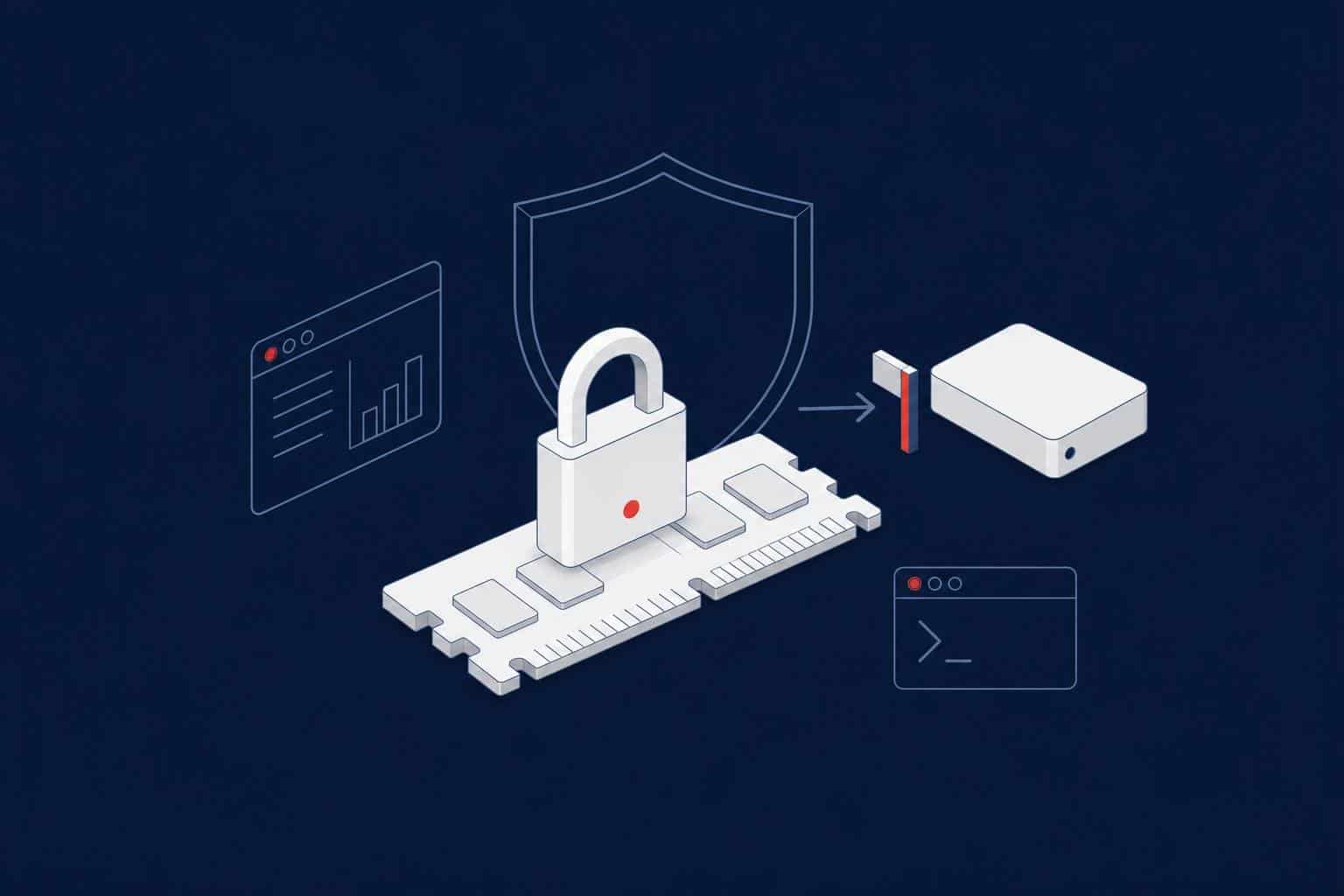
When the SQL Server service account has the Lock pages in memory right (the SeLockMemoryPrivilege privilege), SQL Server allocates its buffer pool memory through the Windows AWE APIs. Memory allocated this way is locked: Windows can’t page it out to disk or trim it from the process, and it stays in physical RAM until SQL Server itself releases it.
What LPIM doesn’t do:
- It doesn’t make SQL Server use more memory, and it doesn’t change max server memory.
- It doesn’t switch off SQL Server’s dynamic memory management. SQL Server still grows and shrinks its caches and still responds to Windows low-memory notifications by releasing memory itself.
- It doesn’t protect allocations outside the buffer pool, such as thread stacks and linked server providers.
- It doesn’t make a server with too little RAM faster. It only stops Windows from taking memory away behind SQL Server’s back.
Since SQL Server 2012, LPIM works in Standard edition as well as Enterprise without any trace flag. Older guides that mention trace flag 845 for Standard edition are out of date.
When Should You Enable It?
LPIM is a protection, not a performance setting you switch on everywhere. Consider it when:
- SQL Server’s memory is being paged out. The clearest sign is error 17890 in the SQL Server error log (see below), usually together with a sudden drop in performance.
- Other software on the server causes memory spikes: backup agents, antivirus scans, large file copies, drivers. LPIM keeps the buffer pool from becoming the victim.
- SQL Server runs in a virtual machine where the hypervisor can reclaim guest memory. Microsoft’s best practices for SQL Server on Azure virtual machines, for example, include enabling LPIM.
- Large, dedicated database servers where a stable buffer pool matters more than flexibility.
On a well-sized, dedicated server that has never shown signs of paging, LPIM often makes no measurable difference. It’s still a reasonable part of a standard build for production servers, as long as max server memory is set.
The Warning Sign: Error 17890
When Windows pages out a large part of SQL Server’s memory, SQL Server writes this message to its error log:
A significant part of sql server process memory has been paged out. This may result in a performance degradation. Duration: 0 seconds. Working set (KB): 1250000, committed (KB): 30500000, memory utilization: 4%.
The key number is memory utilization: the share of committed memory still in physical RAM. A low value means most of SQL Server’s memory was just pushed to disk. To search for it:
EXEC sys.xp_readerrorlog 0, 1, N'significant part of sql server process memory';Always Set max server memory First
LPIM removes Windows’ ability to take memory back from SQL Server. If max server memory is still at its default of 2,147,483,647 MB, SQL Server can lock nearly all physical memory, and the operating system and every other process are left to fight over what remains. The result can be a server that’s slow to log on to, failing backups, or a completely unresponsive machine.
Critical
Never enable Lock Pages in Memory on a server where max server memory is left at the default. Size max server memory first, leaving room for the operating system, thread stacks and every other service on the server, then grant LPIM. Our max server memory guide shows how to calculate the value.
How to Enable Lock Pages in Memory
1. Find the SQL Server service account
SELECT servicename, service_account
FROM sys.dm_server_services
WHERE servicename LIKE N'SQL Server (%';
For a default instance installed with a virtual account, this is NT Service\MSSQLSERVER; for a named instance, NT Service\MSSQL$InstanceName. With a domain service account, it’s that account.
2. Grant the right
- Run
secpol.msc(Local Security Policy) as an administrator. - Go to Security Settings › Local Policies › User Rights Assignment.
- Open Lock pages in memory and click Add User or Group.
- Add the service account from step 1. For a virtual account, type
NT Service\MSSQLSERVERand make sure the location is the local computer.
3. Restart the SQL Server service
The privilege is read when the service starts. Until the restart, SQL Server keeps running in its previous memory model. Plan the restart in a maintenance window; on an availability group or failover cluster, grant the right on every node and restart them one at a time.
Warning
If the Lock pages in memory right is defined in a domain Group Policy, the domain policy overwrites the local setting at the next policy refresh, and your local change silently disappears. In domain environments, check with gpresult /h report.html whether a GPO controls this right, and add the SQL Server service account there instead. The same applies when a server is moved to another OU or replaced during a migration.
Check the right from the command line
# Export the local security policy and look for the privilege
secedit /export /cfg "$env:TEMP\secpol.cfg" /areas USER_RIGHTS | Out-Null
Select-String -Path "$env:TEMP\secpol.cfg" -Pattern 'SeLockMemoryPrivilege'
The output lists the accounts as SIDs (for example *S-1-5-80-... for a virtual service account). A missing line means nobody has the right.
How to Verify It’s in Use
After the restart, confirm that SQL Server actually uses locked pages:
-- CONVENTIONAL = not in use, LOCK_PAGES = in use, LARGE_PAGES = in use with trace flag 834
SELECT sql_memory_model_desc
FROM sys.dm_os_sys_info;

-- Locked memory per NUMA node
SELECT osn.node_id, omn.locked_page_allocations_kb / 1024 AS locked_mb
FROM sys.dm_os_memory_nodes AS omn
JOIN sys.dm_os_nodes        AS osn ON osn.memory_node_id = omn.memory_node_id
WHERE osn.node_state_desc <> N'ONLINE DAC';
The startup section of the error log also contains the line “Using locked pages in the memory manager.” when LPIM is active.
Note
With LPIM enabled, Task Manager shows a surprisingly small memory figure for sqlservr.exe, because locked AWE allocations aren’t counted in the process’s working set. That’s expected. Use sys.dm_os_process_memory (physical_memory_in_use_kb and locked_page_allocations_kb) to see SQL Server’s real memory use.
Large Pages and Trace Flag 834
With LPIM granted, Enterprise edition can also allocate the buffer pool in large pages by enabling trace flag 834 at startup (sql_memory_model_desc then shows LARGE_PAGES). Microsoft describes this as an advanced configuration that isn’t recommended for most environments: memory is allocated in full at startup, which slows down startup and makes the instance less flexible, and it isn’t recommended together with columnstore indexes. Don’t enable it unless you have a specific, tested reason.
Lock Pages in Memory on Virtual Machines
- LPIM protects the buffer pool from Windows inside the guest, but not from the hypervisor. Reserve the VM’s memory on the host and avoid overcommitting it.
- Don’t combine LPIM with dynamic memory (such as Hyper-V Dynamic Memory). Memory that SQL Server has locked can’t be handed back when the hypervisor wants to shrink the VM.
- Set min server memory as well, so the buffer pool keeps a floor if memory pressure occurs.
How to Disable It
Remove the SQL Server service account from the Lock pages in memory right (locally or in the GPO) and restart the service. sql_memory_model_desc returns to CONVENTIONAL.
Lock Pages in Memory Checklist
- max server memory is set and leaves room for the OS and other services.
- The right is granted to the actual SQL Server service account on every node.
- In a domain, the right is managed in the GPO that controls the server’s OU, not only locally.
- The service has been restarted and sql_memory_model_desc shows LOCK_PAGES.
- The error log is monitored for 17890.
- On VMs, memory is reserved and dynamic memory is off.
- Trace flag 834 is not enabled without a specific reason.
Related Reading
SQL Server Performance Consulting
Keep SQL Server’s memory where it belongs
Aryasoft’s senior DBA team checks for paging and memory pressure, sizes max and min server memory, grants Lock Pages in Memory through the right policy on every node and verifies the result after the restart.