
SQL SERVER RESTORE PROCESS
Why do you restore a database in SQL Server, and what’s the point of it?
The restore process in SQL Server returns a database to a previous state by restoring it from a backup. It’s typically used for the following purposes:
Data Recovery: If a database is lost or damaged due to user error, hardware failure, software failure, a natural disaster, or another cause, a restore is performed to bring it back from a backup and minimize data loss.
Testing and Development: When a database needs to be used in a different environment for testing and development purposes, a usable copy can be created by restoring it from a backup.
Data Migration: When a database needs to be moved from one server to another, or from one environment to another, restoring from a backup lets you transfer the data to the target environment.
System Recovery: If there’s a failure or error at the SQL Server or operating system level, the system can be restored from a backup to bring operations back to normal.
Point-in-Time Recovery: When a database needs to be rolled back to a specific point in time, restoring from a backup lets you return the data to its state at that particular moment.
Data Archiving: When old data needs to be stored and archived, data archiving can be carried out by restoring from a backup.
The restore process in SQL Server is a safe and important operation, since it requires that a backup of the database already exists. A proper restore should be carefully planned and carried out to ensure data integrity and consistency.
Now let’s walk you step by step through how to perform a restore on AdventureWorks 2014:
Step 1: First, open SSMS and go to Databases >> right-click >> Restore Database to continue.

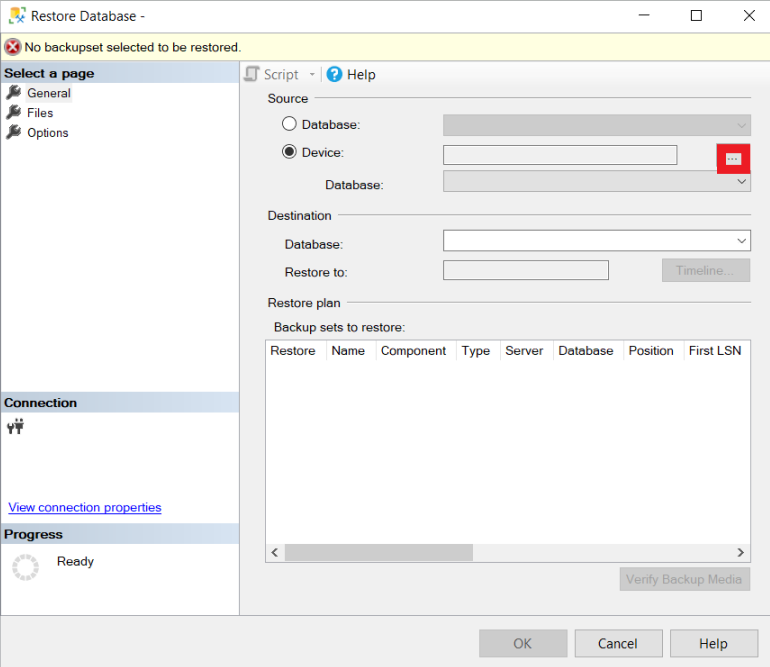
Step 2: After clicking the Device box, click the three dots in the highlighted area.
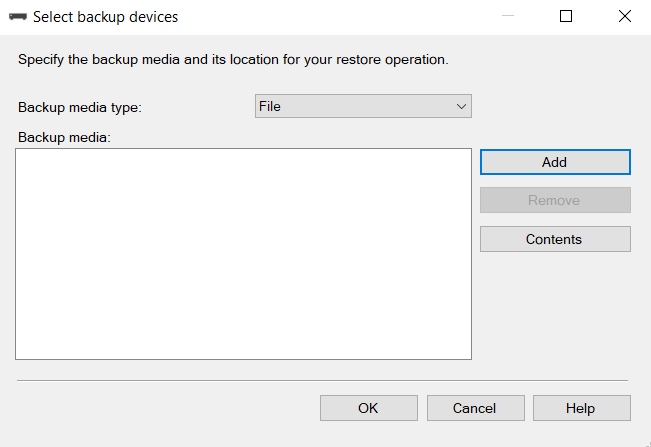
Step 3: The Select backup devices screen appears. Continue by clicking the “Add” box.
Need expert support for SQL Server?
Our senior database team supports SQL Server performance tuning, health checks, migrations, Remote DBA services and urgent operational issues.
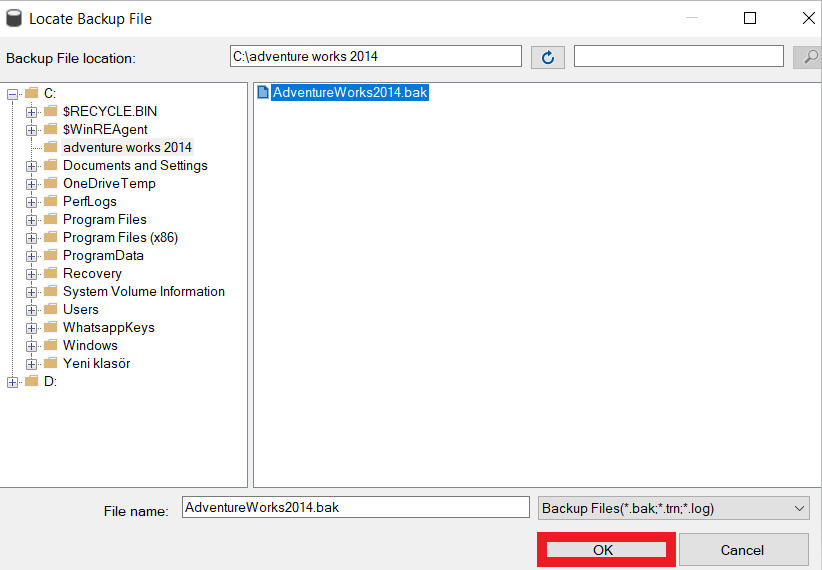
Step 4: Click the folder containing the AdventureWorks 2014 .bak file, select it, and click OK to continue.
Step 5: Click Script to continue.
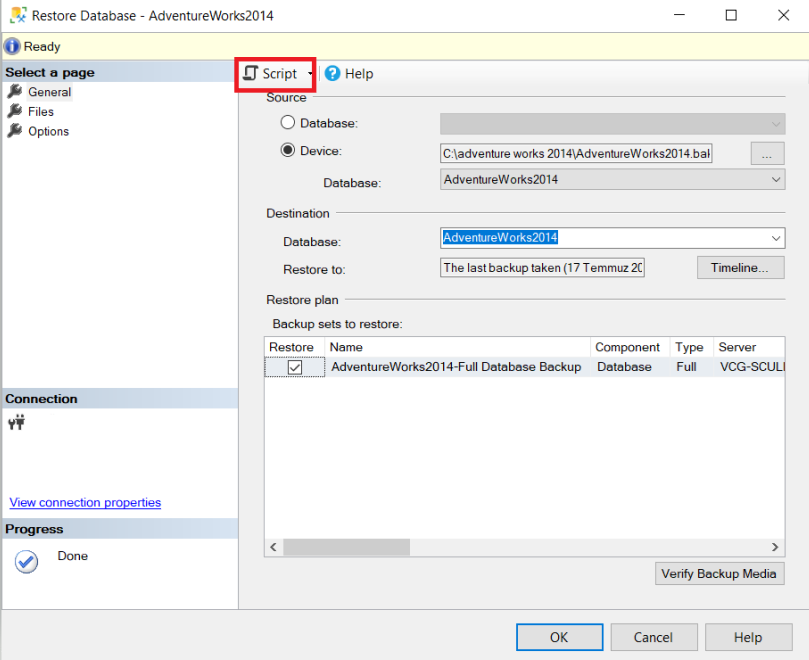
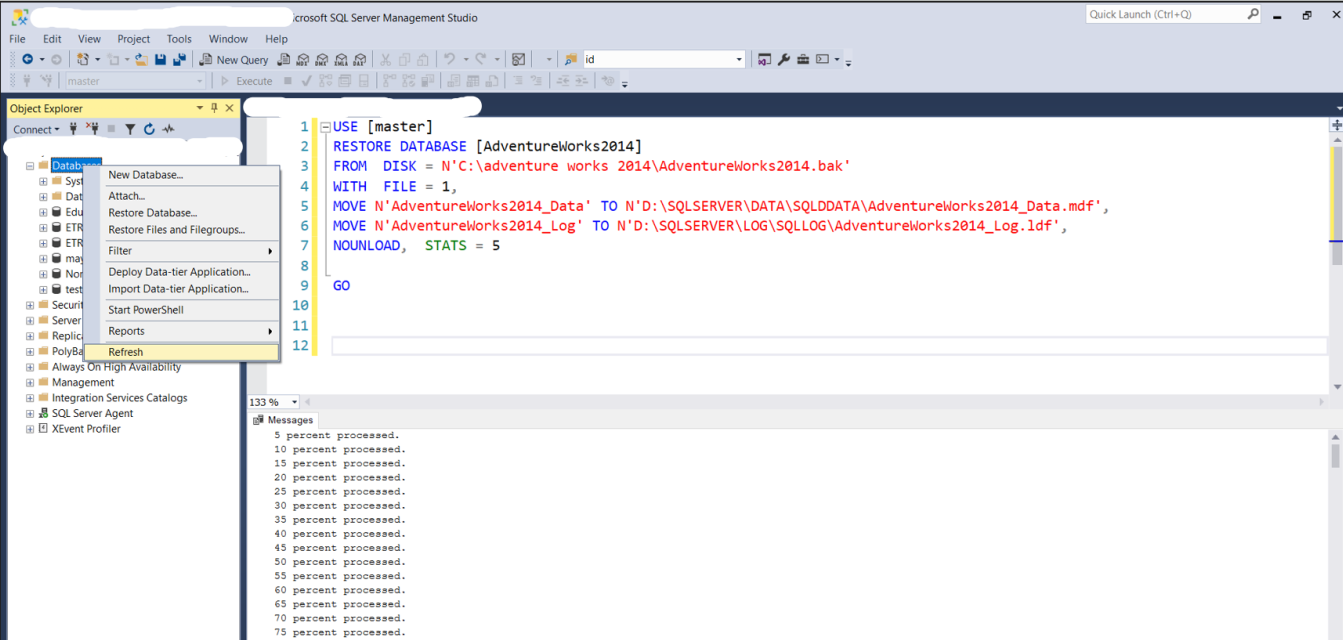
Step 6: Enter the following code and press F5 to run it:
USE [master]

RESTORE DATABASE [AdventureWorks2014]
FROM DISK = N'C:Adventure Works 2014AdventureWorks2014.bak'
WITH FILE = 1,
MOVE N'AdventureWorks2014_Data' TO N'D:SQLSERVERDATASQLDDATAAdventureWorks2014_Data.mdf',
MOVE N'AdventureWorks2014_Log' TO N'D:SQLSERVERLOGSQLLOGAdventureWorks2014_Log.ldf',
NOUNLOAD, STATS = 5
GO
Step 7: After this code runs, you might not see AdventureWorks 2014 right away — go to Databases >> right-click >> Refresh to see the result.
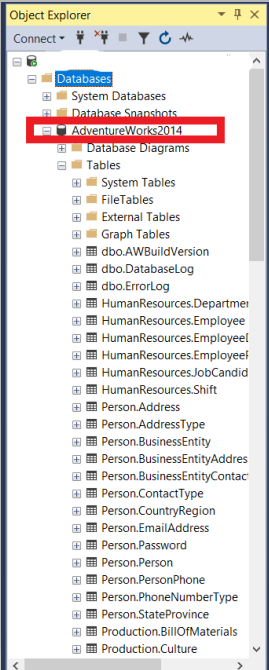
Final Step: The SQL SERVER RESTORE process for AdventureWorks 2014 has now completed successfully, as shown in the image below.
Related Reading
SQL Server Backup Consulting
Does Your Backup Policy Meet Your Data Loss Risk?
Aryasoft builds a backup strategy aligned with your RPO/RTO targets, audits your existing backup policy, and plans recovery testing.