TABLE OF CONTENTS
- •RDS or EC2? Assess your workload first
- •The Two Options in One Minute
- •Comparison Table
- •RDS for SQL Server Limitations to Check Before You Migrate
- •Features RDS does not support
- •Operational limits
- •Multi-AZ caveats
- •High Availability and Disaster Recovery
- •Backup and Restore
- •Licensing: License Included vs Bring Your Own
- •Migration Paths
- •Decision Tree
- •Common Pitfalls
- •FAQ
- •How Aryasoft Helps with the RDS or EC2 Decision
- •Sources
- •Choose between RDS and EC2 before you migrate
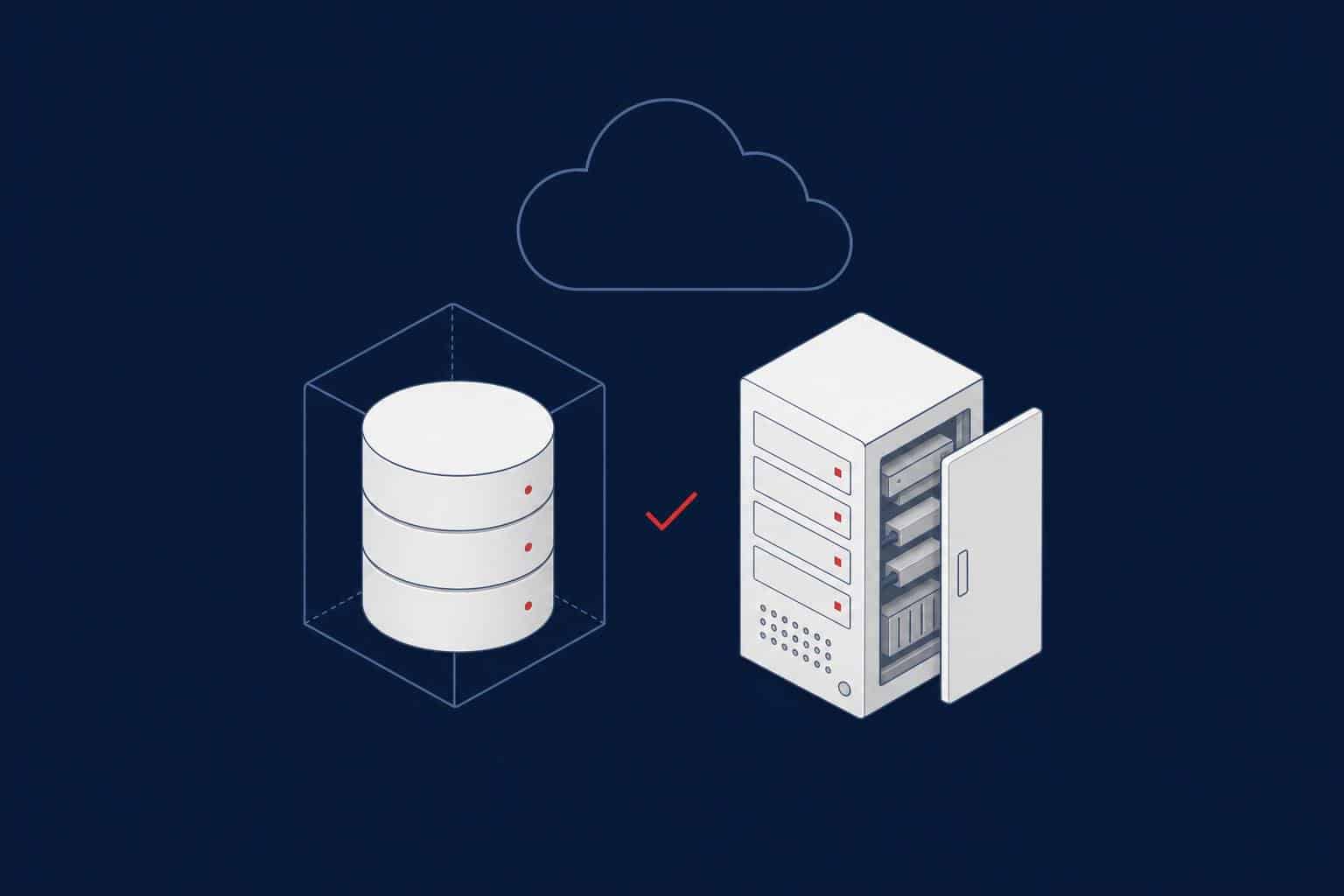
Choose Amazon RDS for SQL Server when your workload fits inside its documented limits and you want AWS to run backups, patching and failover. Choose SQL Server on Amazon EC2 when you need operating system access, a SQL Server feature that RDS does not support, or control over the instance that RDS deliberately withholds.
The two answers cover most cases, but the details decide whether a move is a restore over a weekend or a redesign. This guide compares the options on features, high availability, backups, licensing and migration paths, lists the RDS limitations to check before you migrate, and ends with a decision tree. Every technical statement is based on AWS documentation.
RDS or EC2? Assess your workload first
Aryasoft reviews your SQL Server estate for features RDS does not support, licensing position and migration risk, then helps you choose the target AWS architecture.
The Two Options in One Minute
Amazon RDS for SQL Server is a managed service. AWS provides DB instances, snapshots, point-in-time restore and automated backups, but it does not give you shell access, and it restricts access to certain system procedures and tables that require advanced privileges. You connect with standard SQL clients such as SQL Server Management Studio; direct host access over Telnet, SSH or Remote Desktop is not allowed.
SQL Server on Amazon EC2 is a SQL Server you install and run yourself on a virtual machine, or launch from an AWS-provided Windows Server AMI that already includes SQL Server. Because it is your instance, you can change the installation, add features, upgrade in place or add named instances. AWS documents that the license-included AMIs ship setup media in C:\SQLServerSetup for exactly those tasks. In return, backups, patching strategy and high availability design are yours.
Comparison Table
The table shows the differences that most often change a decision. Limits can change between SQL Server versions, instance classes and AWS Regions, so confirm them on the linked AWS pages before you finalize a design.
| Amazon RDS for SQL Server | SQL Server on Amazon EC2 | |
|---|---|---|
| Service model | Managed database instance; no host access | Self-managed SQL Server on a VM you administer |
| Best fit | Applications that fit RDS’s feature set and want managed operations | OS access, unsupported features, or full control of the instance |
| Unsupported features | A documented list, including xp_cmdshell, FILESTREAM, replication, log shipping and maintenance plans | Whatever your SQL Server edition and version support |
| SQL Server Agent | Yes on Enterprise, Standard and Web, with restrictions: no alerts or operators, no email notifications, no OS command steps | Yes, as in any SQL Server installation |
| Editions | Enterprise, Standard, Web, Express (License Included); Enterprise, Standard, Developer (BYOM) | Web, Standard, Enterprise, Express from AWS; Developer for non-production if you bring it |
| High availability | Multi-AZ managed by RDS: Always On availability groups, database mirroring or block-level replication, depending on version and edition; one standby | You design it; the edition you license determines which HA options you can implement |
| Readable secondary | The Multi-AZ standby cannot serve reads; read replicas are Enterprise Edition only, up to 15 per source | Your design |
| Backups | Automated storage-volume snapshots with point-in-time restore; native .bak backup and restore through Amazon S3 | Standard SQL Server backups, scheduled and stored where you decide |
| Recovery model | Changing the recovery model of a database is not supported | Your choice, as on-premises |
| Patching and upgrades | Optional automatic minor upgrades in maintenance windows; major version upgrades are manual | Yours to schedule and test |
| Storage ceiling | 16 TiB (General Purpose SSD) or 64 TiB (Provisioned IOPS) per instance | Depends on instance and volume configuration; see the EC2 and EBS documentation for current limits |
| Databases per instance | 30 to 100, depending on instance class and availability mode | SQL Server’s own limits |
| Licensing | License Included, or Bring Your Own Media with Software Assurance and License Mobility | License Included AMI, or BYOL; the rules depend on Software Assurance and tenancy |
RDS for SQL Server Limitations to Check Before You Migrate
This is the section that saves projects. A managed service is a trade: AWS takes on operations and in return removes capabilities. Check your instance against the list below before you commit to RDS.
Features RDS does not support
AWS lists these SQL Server features as not supported on RDS: Azure Arc-enabled features, backing up to Azure Blob Storage, buffer pool extension, change event streaming, custom password policies, Data Quality Services, database log shipping, database snapshots (RDS supports only DB instance snapshots), extended stored procedures including xp_cmdshell, FILESTREAM, file tables, Machine Learning and R Services, maintenance plans, Performance Data Collector, Policy-Based Management, PolyBase, replication, server-level triggers, Service Broker endpoints, Stretch Database, the TRUSTWORTHY database property, T-SQL endpoints and WCF Data Services.
A few have limited support rather than none. Linked servers and distributed queries are supported with limitations, and CLR is supported only in SAFE mode on RDS for SQL Server 2016 and lower; it is not supported on 2017 and higher. Some restrictions depend on the version: on SQL Server 2022 and later, SQL Server Analysis Services (SSAS) is not supported, and on SQL Server 2025 SQL Server Integration Services (SSIS) and ZSTD backup compression are not supported either.
Warning
Search your estate for xp_cmdshell, FILESTREAM, replication, log shipping, maintenance plans, CLR assemblies and linked servers before choosing RDS. A single critical job that depends on one of them can force an application change or send you to EC2.
Operational limits
- No host access. You cannot use SSH or Remote Desktop on the DB instance, and some system procedures and tables are restricted.
- Database count. The maximum number of databases depends on the instance class and availability mode: for example, 100 on Single-AZ, 50 with Multi-AZ using database mirroring and 75 with Multi-AZ using Always On availability groups on the xlarge to 16xlarge classes. Smaller classes support 30.
- Storage. The maximum is 16 TiB on General Purpose SSD and 64 TiB on Provisioned IOPS. For more, AWS points to sharding across instances, which needs data-dependent routing in the application.
- Reserved ports. Ports 1234, 1434, 3260, 3343, 3389, 47001 and 49152-49156 cannot be used for the DB instance.
- Standard Edition processor limits. Standard Edition uses only a subset of processors on very large instance classes, per the software limits AWS lists.
- Recovery model. Amazon RDS does not support changing the recovery model of a SQL Server database, because doing so can break the log sequence used for point-in-time recovery.
- Backup I/O. For SQL Server, storage I/O is suspended briefly during the automated backup on both Single-AZ and Multi-AZ, because the backup is taken from the primary.
- Cross-database consistency on restore. After a point-in-time restore, each database is restored to within 1 second of the others, and transactions that span databases might be restored inconsistently.
- Master Data Services. RDS does not support running Data Quality Services or Master Data Services on the same server; AWS suggests EC2 or on-premises SQL Server for them.
Multi-AZ caveats
- Cross-Region Multi-AZ is not supported, you cannot stop a Multi-AZ SQL Server instance, and the standby cannot accept read activity.
- You cannot rename a database on a Multi-AZ instance without first turning Multi-AZ off, and you cannot have an offline database in a Multi-AZ deployment.
- Not everything is replicated to the standby. With database mirroring or Always On availability groups, linked servers are not replicated, Server Audits are only partly replicated and msdb permissions are not replicated. SQL Server Agent jobs replicate only if you turn on job replication, and then only T-SQL job steps.
- You might see higher latency than a Single-AZ instance because of synchronous replication, and large transactions lengthen failover.
- You cannot choose the Availability Zone of the standby, so application hosts should be balanced across zones.
Note
On SQL Server 2022 and 2025, Multi-AZ uses Always On availability groups for Standard and Enterprise Edition, and database mirroring is no longer offered. SQL Server 2022 Web Edition uses block-level replication instead, from version 16.00.4215.2. RDS selects the mechanism from the version and edition you deploy; you do not pick it.
High Availability and Disaster Recovery
On RDS, high availability means a Multi-AZ deployment. RDS monitors the deployment, repairs unhealthy instances, re-establishes synchronization and initiates failover; failover occurs only when the standby and primary are fully in sync. The primary and standby share one endpoint, so the application does not need reconfiguring. Applications should still retry on connection errors.
For disaster recovery across Regions, the options AWS documents are different tools. Read replicas, which are Enterprise Edition only, can be created cross-Region. For database snapshots, AWS recommends snapshot copy to another Region rather than native backups for cross-Region DR. Point-in-time recovery is not supported from read replicas.
On EC2, you choose and build the HA design, and your SQL Server edition decides what is possible. Licensing matters here as well: if you use license-included instances, passive failover instances must be licensed, while bringing licenses with Software Assurance to default-tenancy EC2 permits one passive instance of equal or lesser size where SQL Server licensing is not required. The engine-level options are the same as on-premises, such as Always On availability groups and failover cluster instances, within the limits of your edition; our SQL Server high availability guide compares them.
Backup and Restore
Automated backups on RDS take a storage-volume snapshot of the whole DB instance, not of individual databases, and keep it for the retention period you specify. You can restore to any point in time in that period. RDS uploads transaction logs to Amazon S3 every five minutes, and a point-in-time restore creates a new DB instance rather than overwriting the source. Manual snapshots are independent of automated backups and are not deleted when an instance is deleted, up to 100 manual snapshots per Region.
Native backup and restore is the way to move databases in and out. RDS supports full and differential .bak files stored in Amazon S3. You can back up an on-premises database to S3 and restore it onto RDS, or back up an RDS database and restore it elsewhere, including on-premises. It needs an option group with the SQLSERVER_BACKUP_RESTORE option and an IAM role with access to the S3 bucket, and it does not require a restart. The limits to plan around:
- The S3 bucket must be in the same Region as the DB instance.
- You cannot perform native log backups from RDS for SQL Server.
- A database with a FILESTREAM file group cannot be restored.
- Backup and restore are limited to 5 TB per file (use multifile backups for larger databases), 10 files at a time and two concurrent tasks.
- A native backup is cancelled if it overlaps the daily RDS backup window, and you cannot run one during the maintenance window or while a snapshot is in progress.
- On Multi-AZ instances you can natively restore only databases backed up in the full recovery model.
On EC2, backups are standard SQL Server backups that you schedule, store and test. Nothing is taken for you.
Tip
Whichever platform you choose, test a restore before you rely on it. On RDS, restore a snapshot or a native backup into a new instance; on EC2, restore from your own backup chain. A backup you have never restored is an assumption, not a recovery plan.
Licensing: License Included vs Bring Your Own
We do not quote prices here because they change by Region, edition and agreement; use AWS’s pricing pages and calculator for numbers. What matters for the decision is which licensing models each option supports.
- RDS, License Included: you do not buy a separate SQL Server license; the RDS price includes the license, hardware and management. It is available for Enterprise, Standard, Web and Express.
- RDS, Bring Your Own Media (BYOM): RDS charges no SQL Server license fees, and you use existing licenses with License Mobility through Software Assurance. It requires a valid license with active Software Assurance and License Mobility rights, covers Enterprise, Standard and Developer, and you still pay for infrastructure and Windows OS license fees. Developer Edition is for non-production use only.
- EC2, license-included AMIs: AWS provides Web, Standard and Enterprise editions, and Express at no license fee. License-included instances need no CALs.
- EC2, BYOL: licenses with active Software Assurance can be brought to default (shared) tenancy through License Mobility, which requires a Microsoft verification form. Licenses without Software Assurance can run on EC2 Dedicated Hosts only in a narrow case: purchased before 1 October 2019, or added as a true-up under an Enterprise Enrollment effective before that date, and then only upgradable to versions available before that date. If you buy under the Server/CAL model, the CALs remain on-premises.
Multi-AZ on RDS carries no additional licensing requirements. For how Core and CAL licensing and Software Assurance fit together, see our SQL Server licensing guide.
Migration Paths
Pick the path from the downtime you can accept, not from the tool you have heard of.
- Native backup and restore to RDS. AWS recommends it when the database can be offline while the backup file is created, copied and restored. A native backup carries data, schemas, stored procedures, triggers and other database code. The documentation also covers restoring log backups and finishing a restore, which is how you apply later changes before cutover.
- AWS Database Migration Service (AWS DMS). AWS recommends it when the on-premises database cannot be offline. DMS can run one-time migrations or replicate ongoing changes. Check the prerequisites: SQL Server must be set up for full backups with a backup taken before replication begins, and the recovery model must be bulk-logged or full for ongoing replication. Documented limits include no support for columnstore indexes, memory-optimized tables or databases with accelerated database recovery turned on as a source, and truncate commands are not captured. On an RDS SQL Server target the DMS account needs at least the
db_ownerrole and Windows authentication is not supported. By default DMS creates the tables and primary keys on the target if they do not exist, so plan how other objects reach the target. - Moving back out of RDS. Native backups to S3 can be restored on-premises or on another SQL Server instance, which is your exit path if RDS stops fitting.
For a migration to EC2, the standard SQL Server tools apply as they would between any two servers. If you are weighing Microsoft’s cloud as well, our Azure SQL decision guide covers the same questions for Azure SQL Database, Managed Instance and Azure VMs. Our database migration service page describes how we run these moves.
Do not mix up the two features RDS names “backup”. Automated backups and snapshots are whole-instance storage backups, restored into a new instance. Native backups are per-database .bak files in S3. Your migration and your recovery plan will likely use both, so write down which one each runbook step relies on.
Decision Tree
Work through the questions in order and stop at the first one that applies.
- Do you need operating system access, software installed beside SQL Server, or a feature on the unsupported list (xp_cmdshell, FILESTREAM, replication, log shipping, maintenance plans, PolyBase, CLR on SQL Server 2017 or later)? Choose SQL Server on EC2.
- Does a single instance need more storage or more databases than RDS supports? Check the limits (16 TiB or 64 TiB; 30 to 100 databases). If you cannot shard or consolidate, choose EC2.
- Is your licensing position a blocker? RDS BYOM requires Software Assurance with License Mobility. Licenses without Software Assurance have a narrow Dedicated Host route on EC2. Resolve this before you choose, with your Microsoft licensing adviser.
- Do you need a readable secondary? The Multi-AZ standby is not readable. RDS read replicas need Enterprise Edition; otherwise design the read scale-out yourself on EC2.
- Do you want AWS to run backups, patching and failover, and does your workload fit the limits above? Choose Amazon RDS for SQL Server, with Multi-AZ for production.
- Still unsure? Run an assessment of the instance. The answer to question 1 is the one most often discovered late.
Common Pitfalls
- Choosing from the feature list instead of an assessment. The documentation tells you what is unsupported; only a scan of your own instance tells you what you use.
- Treating Multi-AZ as a backup. It protects against host and zone failure, not against a dropped table. Keep tested backups and point-in-time restore.
- Assuming server-level objects follow you. Linked servers, server audits, msdb permissions and Agent jobs need explicit attention in Multi-AZ.
- Counting only the instance price. Compare backup storage, standby capacity, licensing, and the operations time that each model removes or adds.
- Forgetting the maintenance window. Native backups, Agent jobs and automated backups can collide with maintenance and backup windows.
In practice, decide per database rather than per server. A few databases usually carry the instance-level dependencies; those decide between RDS and EC2, while the rest could move to the simpler option.
FAQ
How Aryasoft Helps with the RDS or EC2 Decision
Aryasoft’s AWS database assessment starts with an inventory of your SQL Server instances and the instance-level features each database uses. We compare that inventory with the RDS limitations above, check your licensing position, and agree a migration path and rollback point per workload. The output is a written target architecture you can take to your budget owner. Our AWS service page describes the wider scope.
Related Reading
- SQL Server High Availability Options: FCI, Availability Groups and Log Shipping Compared
- SQL Server 2025 Licensing Guide: Editions, Core vs. CAL, Pricing and Cost Optimization
- How to Build a SQL Server Backup Plan: RPO, RTO, Schedules and Testing
- Azure SQL Database vs Managed Instance vs SQL Server on Azure VM: How to Choose
Sources
Technical claims in this guide were checked against the AWS documentation below on 19 October 2026. AWS documentation pages do not show a last-updated date, so the date is when we read them. Limits, versions and features change; confirm them on the linked page before you finalize a design.
- Amazon RDS for Microsoft SQL Server (overview and limitations)
- Features not supported and features with limited support
- Multi-AZ deployments for Amazon RDS for Microsoft SQL Server
- Microsoft SQL Server Multi-AZ deployment limitations, notes, and recommendations
- Licensing Microsoft SQL Server on Amazon RDS
- Understand licensing options and considerations for Microsoft SQL Server on Amazon EC2
- Importing and exporting SQL Server databases using native backup and restore
- Support for native backup and restore in SQL Server
- Introduction to backups (Amazon RDS)
- Managing automated backups (Amazon RDS)
- Restoring a DB instance to a specified time for Amazon RDS
- Working with read replicas for Microsoft SQL Server in Amazon RDS
- Using SQL Server Agent for Amazon RDS
- Using a Microsoft SQL Server database as a source for AWS DMS
- Using a Microsoft SQL Server database as a target for AWS DMS
- What is AWS Database Migration Service?
- Upgrades of the Microsoft SQL Server DB engine
AWS Database Assessment
Choose between RDS and EC2 before you migrate
Talk to Aryasoft’s senior DBA and cloud team. We check your instances against the RDS limitations, review licensing and migration risk, and leave you with a documented target for every database.