TABLE OF CONTENTS
- •Stuck on an SSRS Database Upgrade Error?
- •The Three Ways SSRS Handles a Database Upgrade
- •1. Automatic Upgrade (the default path)
- •2. Through Configuration Manager
- •3. Generating the Script Manually via WMI
- •What Running the Script Actually Reveals
- •How This Gets Resolved in Practice
- •In-Place Upgrade or Migration? It Depends on Your Version
- •What Changed in SSRS Going Into SQL Server 2022
- •Frequently Asked Questions
- •Don’t Let a Failed SSRS Upgrade Take Your Reports Offline
Since SQL Server 2008, Microsoft removed the old “Upgrade” button and the static .sql upgrade files from the Reporting Services Configuration Manager. That doesn’t mean the upgrade logic disappeared — it just moved behind the scenes, into the Report Server service itself. Most of the time you never notice it: you patch or upgrade SQL Server, the Report Server service restarts, it detects an older catalog schema version, and it upgrades the ReportServer database silently in the background — exactly as described in Microsoft’s own upgrade documentation.
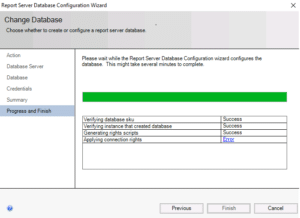
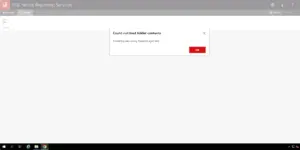
The problem is what happens when that silent upgrade doesn’t finish cleanly. There’s no dialog, no error popup on screen — reports simply stop loading, and the only trace is a generic message like “An error occurred within the report server database” or, buried in the RSManagement log, a line as blunt as “Database upgrade failed!! The database may now be in an inconsistent state.” At that point, guessing is expensive. The fix is to get the actual upgrade script SSRS was trying to run, so you can see exactly which statement failed and why.
Stuck on an SSRS Database Upgrade Error?
Our senior engineers can pull the real ReportServer upgrade script, pinpoint the exact failing statement, and get your SSRS upgrade across the line safely.
The Three Ways SSRS Handles a Database Upgrade
1. Automatic Upgrade (the default path)
This is what happens on almost every patch cycle. You open Reporting Services Configuration Manager, connect to (or start) the service against an older ReportServer database, and the schema upgrade runs the moment the service starts. No confirmation, no visible script — it either succeeds quietly or fails quietly.
2. Through Configuration Manager
If you manually attach an older ReportServer database to a newer Report Server instance via the Configuration Manager, it detects the version mismatch and prompts you to confirm before applying the upgrade. Clicking Apply runs the same upgrade logic directly, just with an explicit confirmation step.
3. Generating the Script Manually via WMI
This is the path that actually matters when something has gone wrong, or when your environment requires a DBA to review any schema change before it touches production — which, for anything running on a live reporting catalog, it should. Reporting Services exposes a WMI method, GenerateDatabaseUpgradeScript, that produces the exact T-SQL the automatic upgrade would have executed, without running it.
# Scan the likely WMI namespaces for an SSRS 2022 instance
$possibleNamespaces = @(
    "root\Microsoft\SqlServer\ReportServer\RS_SSRS\v16\Admin",
    "root\Microsoft\SqlServer\ReportServer\RS_MSSQLSERVER\v16\Admin",
    "root\Microsoft\SqlServer\ReportServer\RS_SSRS\v15\Admin"  # An upgraded server can sometimes still report as v15
)

$correctNamespace = $null

foreach ($ns in $possibleNamespaces) {
    try {
        $check = Get-WmiObject -Namespace $ns -Class "MSReportServer_ConfigurationSetting" -ErrorAction Stop
        if ($check) {
            $correctNamespace = $ns
            Write-Host "Found the correct namespace: $correctNamespace" -ForegroundColor Green
            break
        }
    } catch {
        # Not a valid namespace on this server, try the next one
    }
}

if ($correctNamespace) {
    $wmi = Get-WmiObject -Namespace $correctNamespace -Class "MSReportServer_ConfigurationSetting"

    # Generate the raw script (update "ReportServer" if your database is named differently)
    $rawScript = $wmi.GenerateDatabaseUpgradeScript("ReportServer", "16.0")

    if (![string]::IsNullOrEmpty($rawScript)) {
        # Normalize line endings to CRLF
        $cleanScript = $rawScript -replace "(?<!\r)\n", "`r`n"
        $cleanScript | Out-File "C:\temp\SSRS_Upgrade_Script.sql"
        Write-Host "Done! Script saved to C:\temp\SSRS_Upgrade_Script.sql" -ForegroundColor Cyan
    } else {
        Write-Host "Namespace found but no script was generated (your database may not be named 'ReportServer')." -ForegroundColor Yellow
    }
} else {
    Write-Host "No valid SSRS namespace was found. The WMI service may not be responding." -ForegroundColor Red
}
This version automatically walks through the likely SSRS 2022 namespaces instead of requiring you to hand-edit a single hardcoded path — default instances typically use RS_SSRS, named instances use RS_MSSQLSERVER, so both get tried in sequence. A few details still matter:
- The namespace path is version-specific —
v14on SQL Server 2017,v15on 2019,v16on 2022. The wrong version segment simply returns an empty WMI class rather than a helpful error, which is why the script tries several candidates in order. - The second argument to
GenerateDatabaseUpgradeScriptis the target catalog version, not your SQL Server version number ("16.0"for SQL Server 2022) — match it to the SSRS release you’re upgrading to, not the engine. - This only generates the script. It does not execute anything against the database, which is exactly why it’s the safer diagnostic step before letting the service retry the upgrade on its own again.
What Running the Script Actually Reveals
The example above assumes your database is named ReportServer — if you’re running a named instance, your real database name will be ReportServer$InstanceName instead.
Critical: Don’t run this against production
Once you have the real script, run it manually against a copy of the ReportServer database — never directly against production on the first attempt.
That turns a vague “something failed” into a specific, fixable T-SQL error — the culprit might be a trigger, or a missing operator or permission/role in the msdb database. In practice, the failures we run into most often fall into a small number of patterns:
| Symptom | Likely cause |
|---|---|
“Column names in each table must be unique” on a table like SessionData |
A scale-out deployment where not every report server node was taken offline before the upgrade, leaving conflicting schema changes applied in parallel |
Errors converting or unioning ntext columns, or a collation mismatch mid-script |
Jumping too many major versions at once (e.g. 2012 straight to 2019) — the legacy ntext/nvarchar(max) transition logic doesn’t always resolve cleanly across that many releases in one pass |
| “Database upgrade failed!! The database may now be in an inconsistent state” | The upgrade was interrupted partway (service restart, timeout, permissions) and the schema is now a mix of old and new versions |
| Reports fail post-upgrade with “Invalid object name” on internal catalog objects | The application layer (a report portal, an ERP add-on, or a custom deployment script) is still pointing at the pre-upgrade catalog structure or an outdated ReportServer share |
None of these are things you want to fix by trial and error against a live catalog — and this is where the value of having the actual script is obvious: you can see the exact failing statement, the exact object it’s operating on, and reason backward to the real cause instead of guessing from a generic UI error.
How This Gets Resolved in Practice
Once the failing statement is identified, the fix is rarely “run the script again and hope.” A senior DBA typically works through it in this order:
- Isolate the conflict. For scale-out environments, confirm every node is offline and the schema state matches across all of them before touching anything.
- Resolve the schema conflict directly. Duplicate or orphaned columns from a partially-applied prior upgrade are cleaned up manually, matching what the generated script expects to find.
- Bridge large version gaps in stages. If the target script is failing on legacy data-type conversion, upgrading through an intermediate version (for example 2012 → 2017 → 2019, rather than straight to 2019) lets each stage’s upgrade logic handle a smaller, well-tested delta.
- Re-run the corrected script against a copy first, confirm it completes cleanly, then apply it to production and let the Report Server service reconnect normally.
- Verify the catalog version in the
DBUpgradeHistorytable matches what the target SSRS release expects, and confirm reports render correctly before considering the upgrade closed out.
Manually editing the version number in DBUpgradeHistory to force the portal to load is sometimes suggested online as a quick fix — it isn’t one. It hides the underlying schema inconsistency rather than resolving it, and tends to resurface as harder-to-diagnose report failures later. Treat it as a last-resort diagnostic signal, not a fix.
In-Place Upgrade or Migration? It Depends on Your Version
Which upgrade method you’re even allowed to use depends on where you’re starting from — and this distinction gets missed often. Per Microsoft’s own upgrade and migration documentation:
- SQL Server 2016 or older → SQL Server 2016 or older: A classic in-place upgrade works; the SQL Server setup media upgrades SSRS along with the engine.
- SQL Server 2016 or older → SSRS 2017 or later: In-place upgrade is not supported. Starting with SSRS 2017, Reporting Services became a standalone product no longer bundled with SQL Server setup, so you need to migrate — attaching the database to a fresh SSRS 2017+ installation — instead of upgrading in place.
- SSRS 2017 or later → later releases: In-place upgrade works again, since the installation GUIDs stayed the same; you can run
SQLServerReportingServices.exedirectly on the existing server.
Warning: There’s no way back
Microsoft’s own warning is explicit: once the schema is upgraded, you cannot roll back to an earlier version. Backing up both the ReportServer/ReportServerTempDB databases and your symmetric encryption keys before you start is the only safety net you’ll have if something goes wrong.
In a scale-out deployment, the upgrade has to happen by removing every node from the scale-out configuration through Configuration Manager, upgrading one node, then adding the others back one at a time — which is exactly the scenario behind the SessionData error in the table above.
What Changed in SSRS Going Into SQL Server 2022
Even a clean database upgrade doesn’t guarantee every report or integration keeps working the same way — because SSRS drops certain features outright with each major release. Per Microsoft’s discontinued functionality list, the notable removals in recent releases:
| Version | Feature removed | Replacement |
|---|---|---|
| SQL Server 2022 | XLS and DOC render formats | XLSX and DOCX formats |
| SQL Server 2022 | Atom Data Feed | oData feed for shared datasets |
| SQL Server 2022 | Mobile Reports and Mobile Report Publisher | Power BI reports via Power BI Report Server |
| SQL Server 2019 | HTML 4.0 renderer | HTML 5 renderer |
| SQL Server 2016 | Uploading/managing report models through the web portal | — |
Teams with automation built on XLS/DOC exports, or users relying on old Mobile Report subscriptions, often come back to us reporting “the report behaves differently” even when the database upgrade itself completed cleanly. That’s why an upgrade plan should review feature usage, not just the schema.
Related Reading
Frequently Asked Questions
ntext/collation-related script errors. Going through an intermediate version as a step (2016 → 2019 → 2022, for example) lets each stage handle a smaller, better-tested delta. Also note that moving from SSRS 2016 or older to 2017 or later requires migration, not an in-place upgrade.SessionData.FINAL CTA
Don’t Let a Failed SSRS Upgrade Take Your Reports Offline
Whether you need the upgrade script generated and reviewed before running it, or you’re already staring at an inconsistent ReportServer database, Aryasoft’s senior DBA team can diagnose the exact failure and get Reporting Services back online without guesswork.