Resolving a SQL Server Connection Error
Ever been in a hurry and needed to make a change in SQL?
You’re using the database, and then you suddenly get an error?
That’s nothing short of a nightmare.
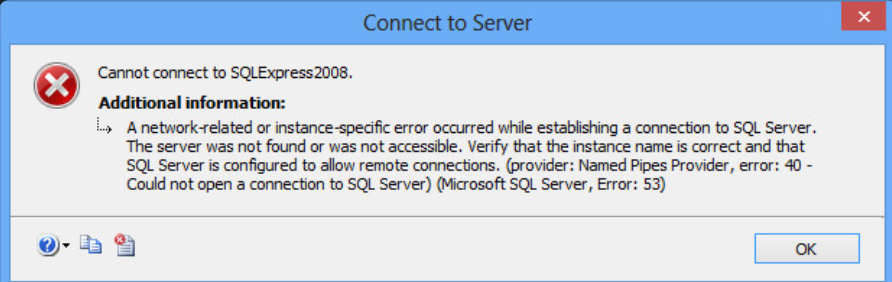
Here are the reasons you might get this error:
- It can result from a failure to connect to the server instance you’re using.
- It can be caused by incorrect default settings.
- SQL Server may not be allowed to accept remote connections.
- It can be caused by firewall settings.
To resolve these issues, follow the solutions below:
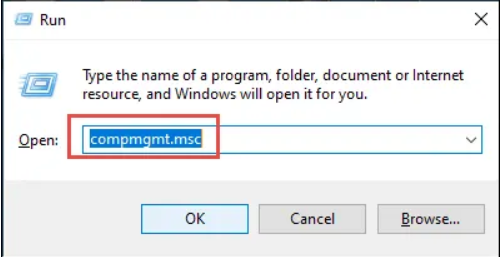
Step 1: First, press the Windows key together with R to open the Run box.
Step 2: Type ‘compmgmt.msc’ in the Open box as shown in the screenshot below. Then click OK to run it.
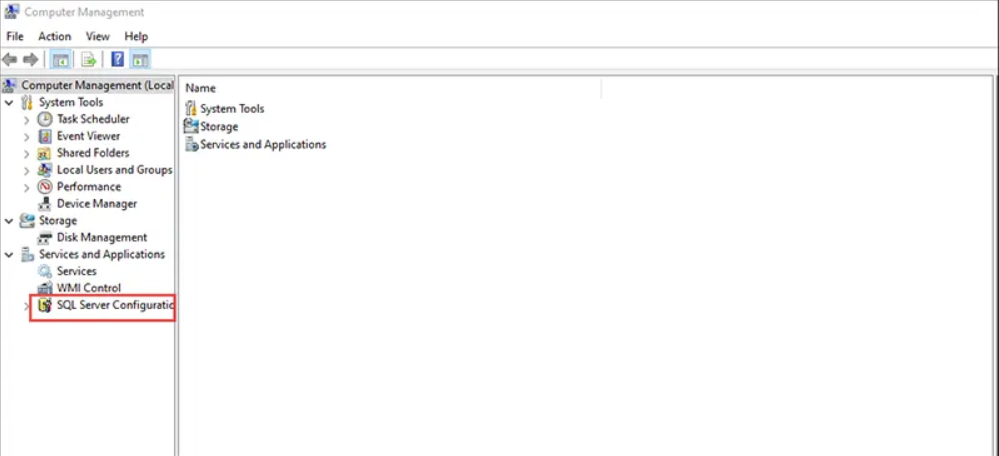
Step 3: From the Computer Management window, click Services and Applications >> SQL Server Configuration.
Step 4: Then select SQL Server Services.
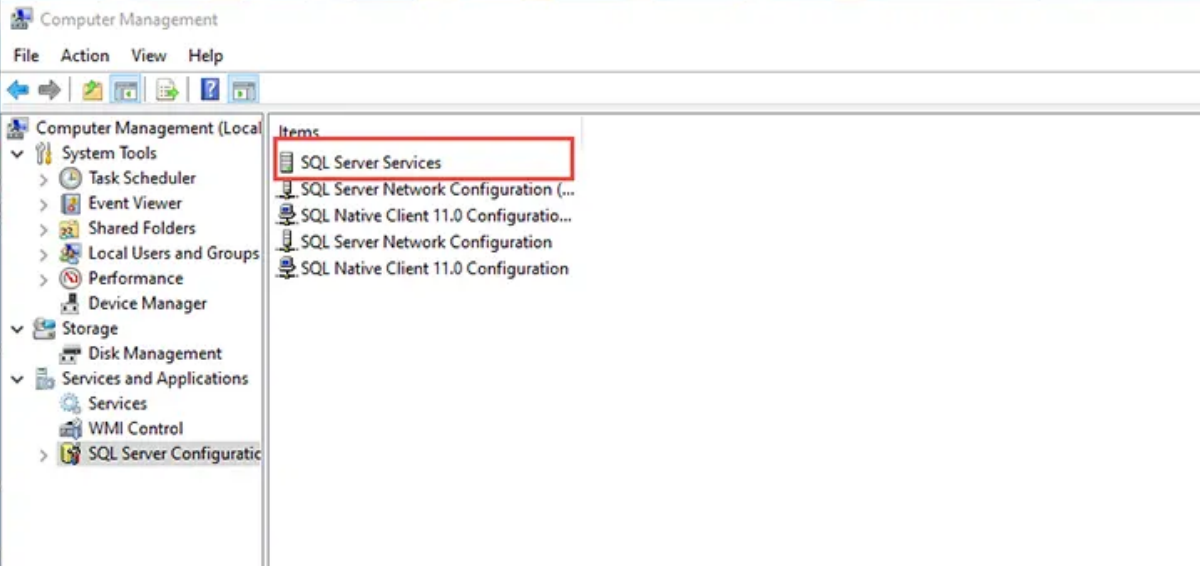
Step 5: Once you’ve selected this option, SQL Server’s 6 different services
are displayed on screen along with their status.
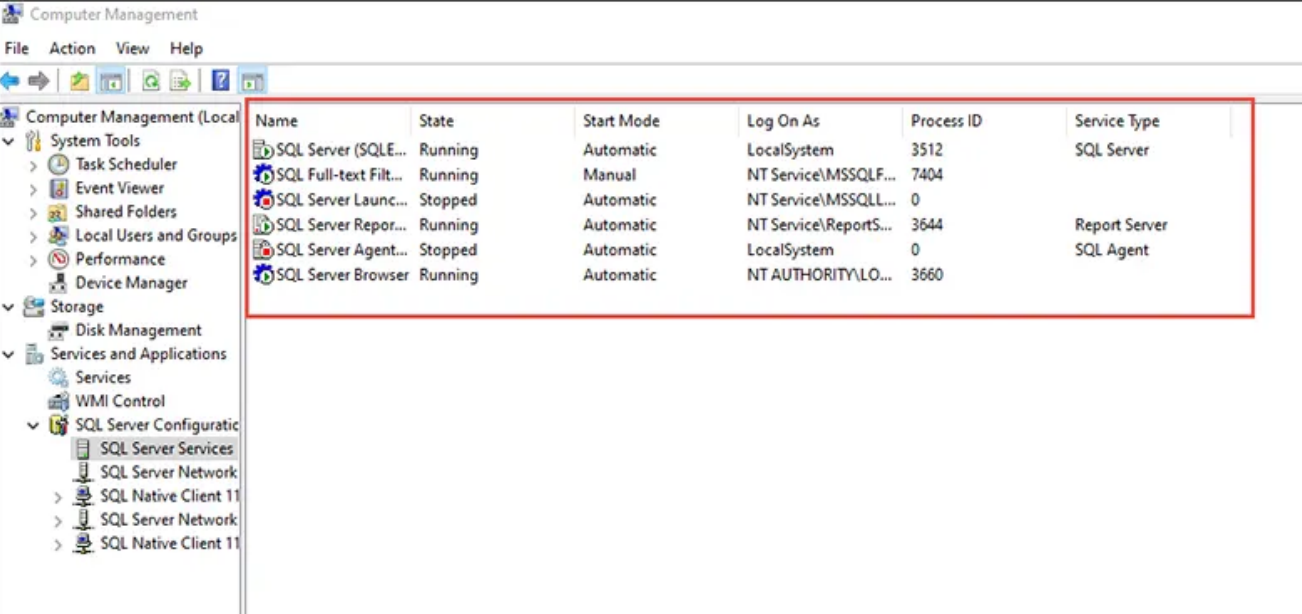
Step 6: Finally, you need to start the services.
Method 2: Enable the TCP/IP Network Protocol
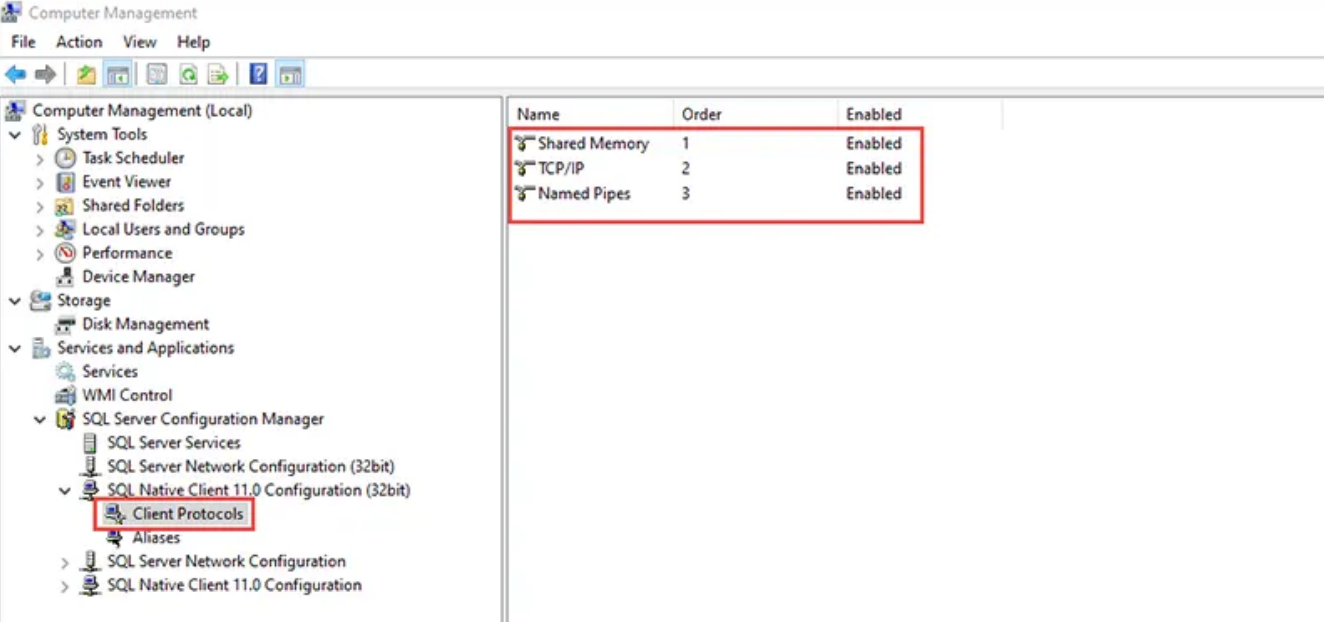
Step 1: From the Computer Management window, go to Services and
Applications >> SQL Server Configuration Manager >> SQL Native Client 11.0 Configuration (32-bit).
Step 2: Under SQL Native Client 11.0 Configuration (32-bit), select Client
Protocols. When you do this, you’ll see three protocols: Shared
Memory, TCP/IP, and Named Pipes. If any of them are disabled, enable them. To do
this, right-click any protocol and click Enable.
Step 3: Try connecting to SQL Server through SQL Server Management Studio and see whether the Microsoft SQL Server error has been resolved.
Method 3: Allow Remote Connections
Need expert support for SQL Server?
Our senior database team supports SQL Server performance tuning, health checks, migrations, Remote DBA services and urgent operational issues.
Connections
Step 1: Open Microsoft SQL Server Management Studio. Here, we’re using
SSMS 2014 on Windows 10.
Step 2: Under Object Explorer, go to the server name. Then right-click
on it and select Properties.
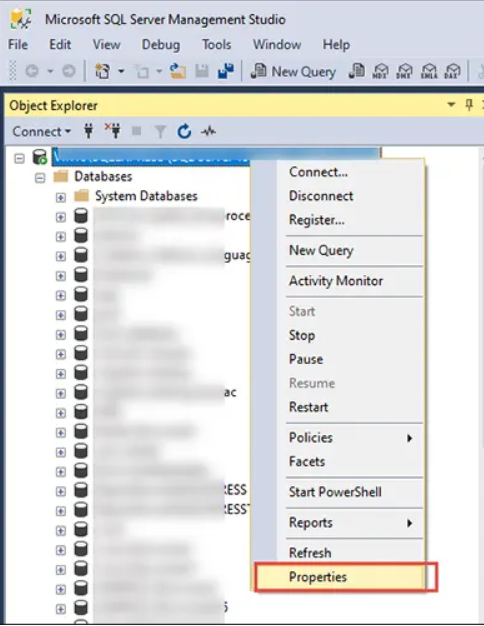
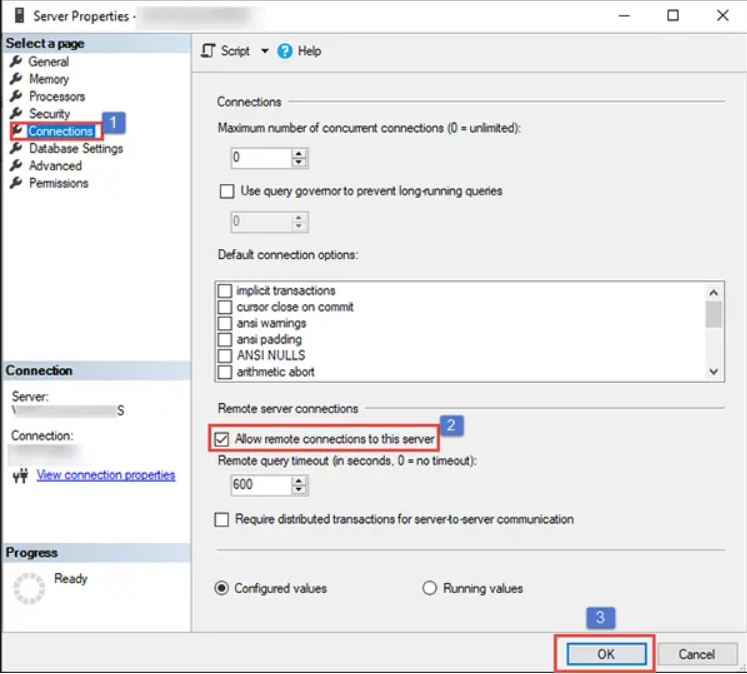
Step 3: Under the Server Properties window, go to the Connections section and
check the box that corresponds to allowing remote connections to this server.
Then click OK to resolve the SSMS error.
Putting It All Together
If, for any reason, users run into a Microsoft SQL Server connection error
when connecting to Local in SSMS, try the workarounds mentioned above.
That said, a SQL Server error often occurs because of corruption in the MDF file. In
such a case, try a dedicated SQL database recovery tool. This is a
complete guide to help users understand how to fix an MS SQL error on the
Windows platform.
Frequently Asked Questions from Users
Q – How do I allow SQL Server to accept remote connections?
A – To enable the remote location, do the following.
1. Connect to SQL Server Management Studio.
2. Right-click your server’s name and select Properties.
3. Check the box next to “Allow remote connections to this server” and click OK.
Q – Why am I getting a network-related or instance-specific error in SQL?
A – Check whether all of your SQL Server services are running.
Q – How do I fix the Microsoft SQL Server named pipes provider error?
A – You should enable your SQL Server services and your TCP/IP network protocol.
If the problem still isn’t resolved, allow remote connections.
Related Reading
SQL Server Emergency Support
Are Connection Issues Threatening Your Business Continuity?
Aryasoft’s Remote DBA team provides fast diagnosis and lasting fixes for SQL Server connection errors.