
Improve SQL Performance by Optimizing for Ad Hoc Workloads
What is the option to optimize for ad hoc workloads?
When you write a query in SQL Server, the query optimizer needs to create a “Plan” on how to execute that query.
Typically, SQL Servers will save this plan in the plan cache to be reused at a later date.
Optimize for Ad Hoc Workloads is a server-level option that changes the behavior of the plan cache for single-use queries.
When you turn this on, SQL Server does not store the entire plan the first time the query is run and instead stores a plan fix, reducing what we call plan bloat.
This reduces the size of one-off queries taking up space in the cache and allows reusable plans to stay in the cache longer.
This is great because some of these plans will never be reusable.
Should we enable it?
If your workload contains a really large number of ad hoc queries (different expressions in each execution), enabling Optimize for Ad hoc Workloads is perhaps your best option.
You can check the size of your ad hoc plan and Total Plan Cache using the following query:
SELECT AdHoc_Plan_MB, Total_Cache_MB,

AdHoc_Plan_MB*100.0 / Total_Cache_MB AS 'AdHoc plan%'

FROM (

SELECT SUM(CASE

WHEN objtype = 'adhoc'

THEN size_in_bytes

ELSE 0 END) / 1048576.0 AdHoc_Plan_MB,

SUM(size_in_bytes) / 1048576.0 Total
_Cache_MB

FROM sys.dm_exec_cached_plans) P
If your ad hoc plan cache is 15-30% of the total Plan Cache, enabling Optimize for Ad Hoc Workloads can be beneficial for your SQL server.
However, enabling Optimize for Ad hoc Workloads will definitely not help when you have non-parameterized queries, these original queries will still be generated.
The primary problem with forced parameterization is what we call parameter sniffing.
By default parameterization is not recommended. But that doesn’t mean it’s not useful. It’s always better to find the root cause than to treat the symptoms.
How can we turn on Optimize for Ad Hoc Workloads?
You can enable Optimize for Ad Hoc Workloads using SSMS by following these steps:
- In Object Explorer, right-click on the server
- Go to advanced page and – select the “Optimize for ad hoc Workloads” property as true.
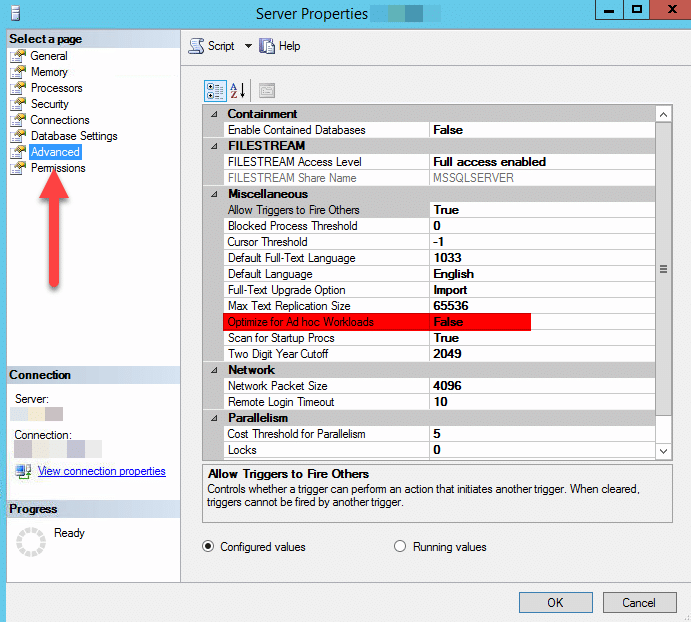
You can also run the following query using T-SQL to apply the change:
SP_CONFIGURE 'Show Advanced Options', 1

GO

RECONFIGURE

GO

SP_CONFIGURE 'optimize for ad hoc workloads', 1

GO

RECONFIGURE

GO
Note: Enabling optimization for ad hoc workloads affects only new plans. Plans already in the plan cache are not affected.
Need expert support for SQL Server?
Our senior database team supports SQL Server performance tuning, health checks, migrations, Remote DBA services and urgent operational issues.
Related Reading
SQL Server Performance Consulting
Not Sure About Your SQL Server Performance?
Aryasoft analyzes query performance, indexing, memory and disk configuration end-to-end and delivers concrete improvement steps.